
Kategorien
Magento
WordPress
SAP Commerce
Odoo
Shopify
Typo3
Shopware
nopCommerce
Pimcore
Hyvä
OXID eShop













































1. Introduction
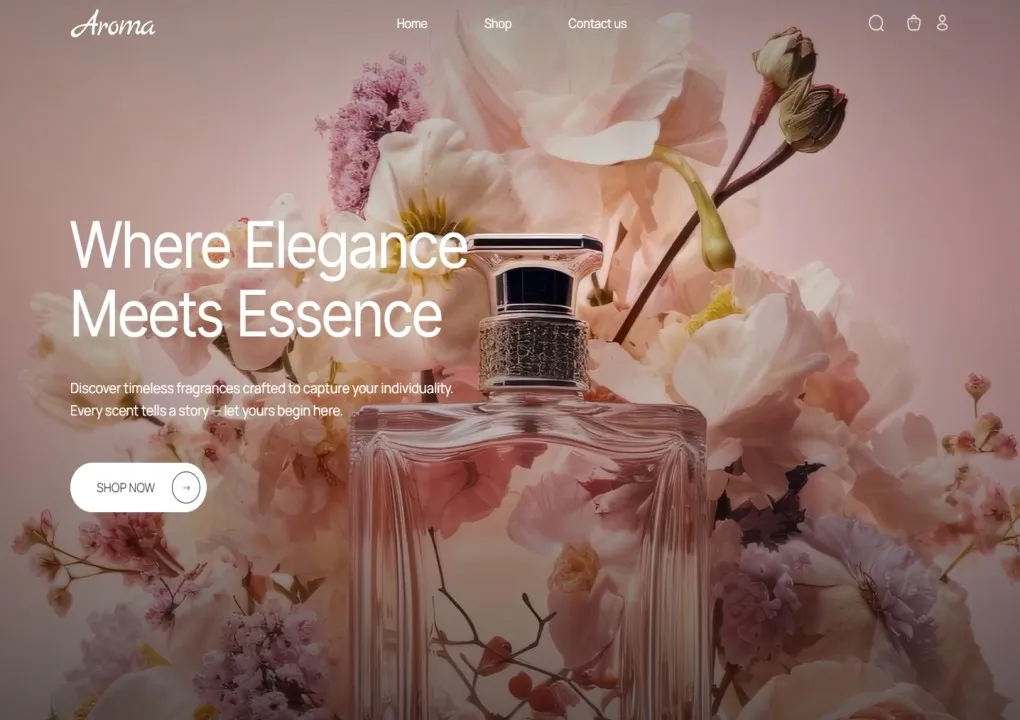
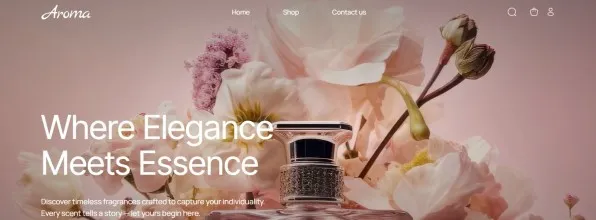
The Theme Aroma is a premium, elegant, and modern Odoo website theme crafted for businesses especially those in the perfume and fragrance industry seeking a refined and luxurious online presence. With its sophisticated design, soft color palettes, and smooth animations, it enhances your brand identity and delivers a premium shopping experience to customers.
Built with the flexibility of Odoo Website Builder, this theme allows you to easily customize layouts, manage product collections, and showcase your perfumes with high-quality visuals, detailed descriptions, and scent categories.
2. Features
- Responsive Design: Fully responsive layouts that adapt seamlessly to all screen sizes and devices, ensuring a consistent and elegant experience on desktop, tablet, and mobile.
- E-Commerce Ready: Optimized for Odoo’s eCommerce framework with dedicated product showcase layouts, quick view pop-ups, and smooth cart integration for a refined shopping experience.
- Custom Components: Includes pre-built, reusable blocks such as banners, product grids, fragrance collections, and promotional sections — easy to drag, drop, and customize.
- Elegant Animations & Visuals: Soft transitions, hover effects, and subtle animations enhance visual appeal while maintaining a luxurious and modern aesthetic.
- Easy Customization: User-friendly editor support to modify colors, typography, and layout effortlessly, allowing you to create a unique brand identity with minimal effort.
3. Install and Set Up the Theme
- Log in to your Odoo instance.
- Enable Debug Mode → Go to Apps → Update Apps List.
- Go to Website → Editor → Edit → Theme Tabs → Website Section → Switch Theme and select Theme Aroma.
- The dependency module Aroma Theme Snippets will be installed automatically.
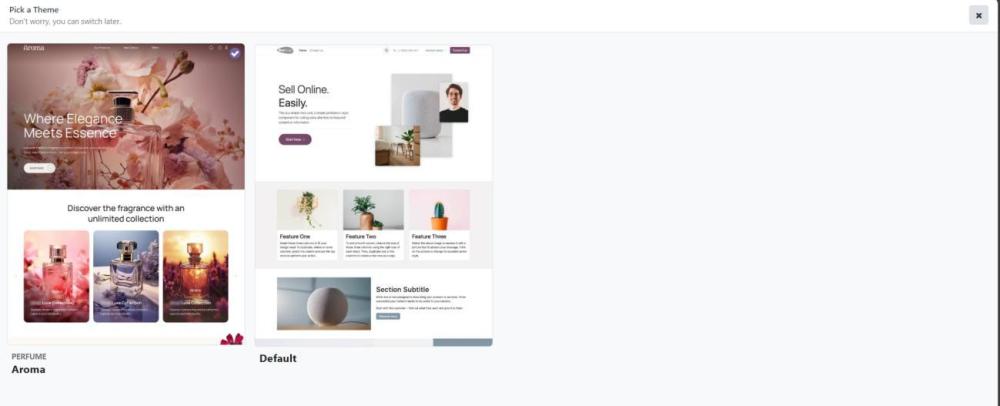
Figure 1 – Select Theme Aroma
4. Header Style
- Go to Website → Editor → Edit, then click on the Header section.
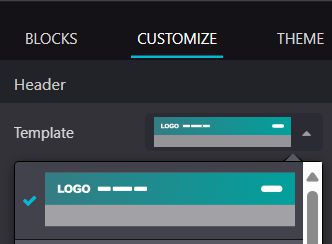
Figure 2– Header Template
- Select the Header Template shown above.

Figure 3– Aroma Header
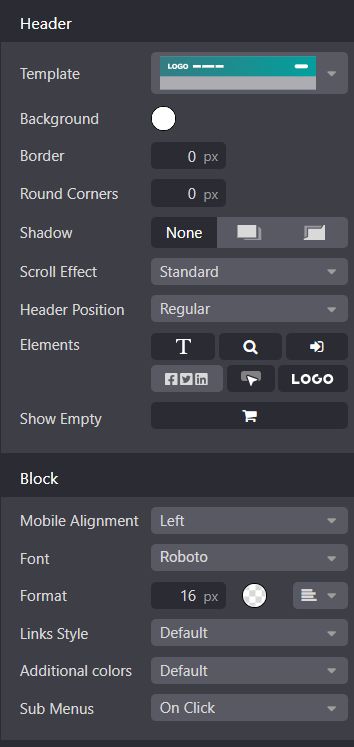
Figure 4– Header Customization
- Choose the Header Template, Placement, and Scroll Behavior.
- Customize the Background, Border, Corners, and Shadow effects.
- Set the Font Family, Font Size, and Link Styles for the header text.
- Adjust Mobile Alignment and Submenu Behavior as needed.
5. Mega Menu
- Go to Website → Site → Menu Editor, click Add Mega Menu Item, and fill out the popup form to create the menu.
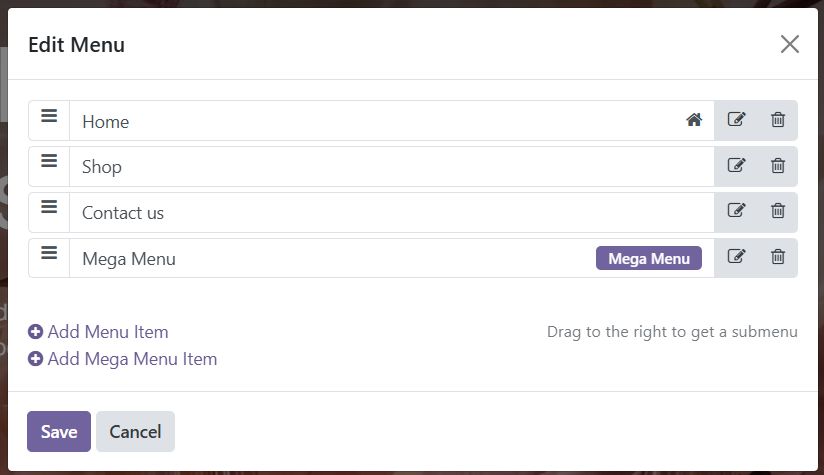
Figure 5 – Create Mega Menu
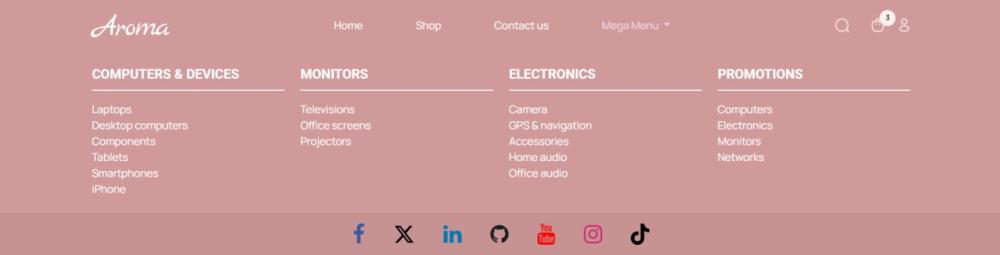
Figure 6 – Mega Menu
6. Theme Aroma Snippets
- Go to Website →Editor →Edit, then click Blocks.
- Drag and drop the required Aroma Blocks as needed.
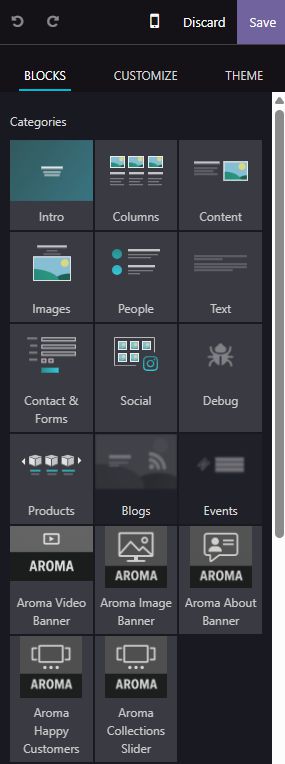
Figure 7 – Aroma Snippets
Notes:
- Background videos in Odoo are rendered through iFrames, which limits direct control over their height and scaling. Videos smaller than their container may leave visible gaps, exposing the background image behind them. To ensure proper display, use videos that match the container’s aspect ratio—preferably a standard 16:9 ratio for optimal compatibility.
- Certain sliders (such as Aroma Collection Slider and Happy Customers Slider) are powered by Splide.js for smooth and interactive transitions. In the Odoo Website Editor, these sliders may initially appear without navigation buttons, spacing, or sliding effects, as the required JavaScript initializes only after the first save. Once the page is saved, all scripts load correctly, and the sliders display with proper spacing, transitions, and functional controls.
- In the editor, you can adjust each block’s height (Auto, 50%, 100%) and width (Small, Regular, Full). However, altering these may affect the layout due to minimum spacing requirements. It is recommended to keep height as Auto and width as Regular for optimal alignment and appearance.
- When using a video banner, it is advisable to use the first frame of the video as the banner’s background image. This ensures a smooth transition and prevents flickering while the video loads
6.1. Aroma Video Banner
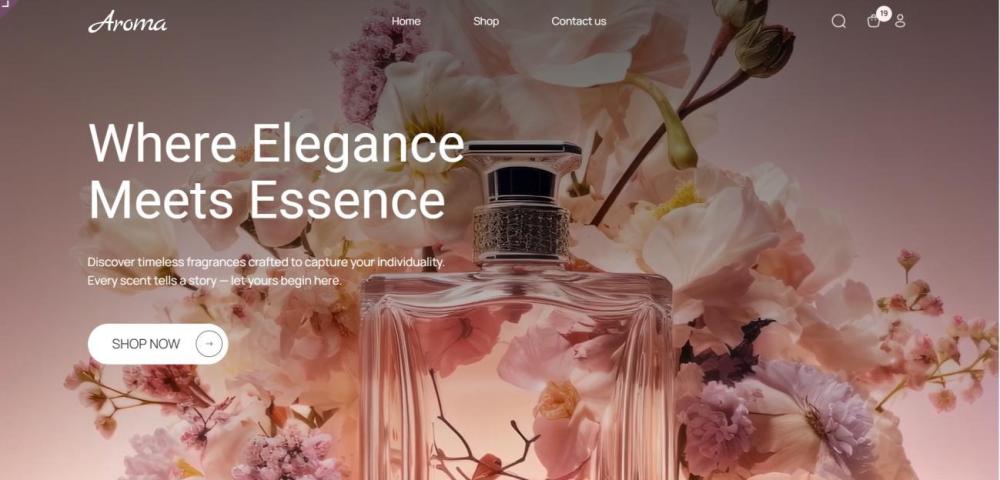
Figure 8 – Aroma Video Banner
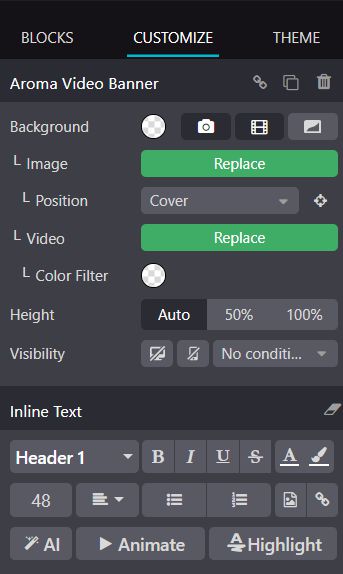
Figure 9 – Customize Video Banner
- Set a background using an image or video, and apply color filters to adjust tone and overlay effects.
- Replace or upload new media, and choose the background position.
- Control banner visibility by managing when and where it appears using visibility conditions.
- Edit text directly within the banner for quick customization.
- Add animation or highlight effects to create an engaging visual presentation.
6.2. Aroma Collections Slider
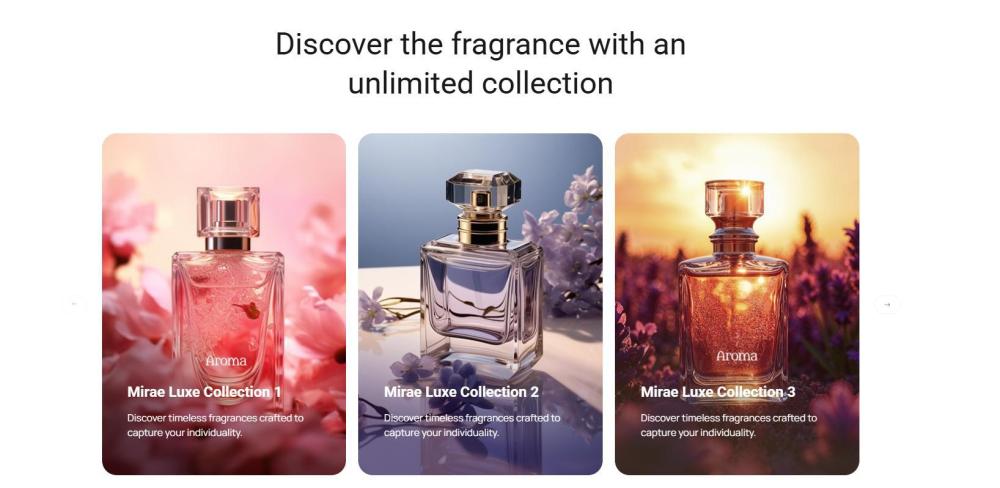
Figure 10 – Aroma Collections Slider
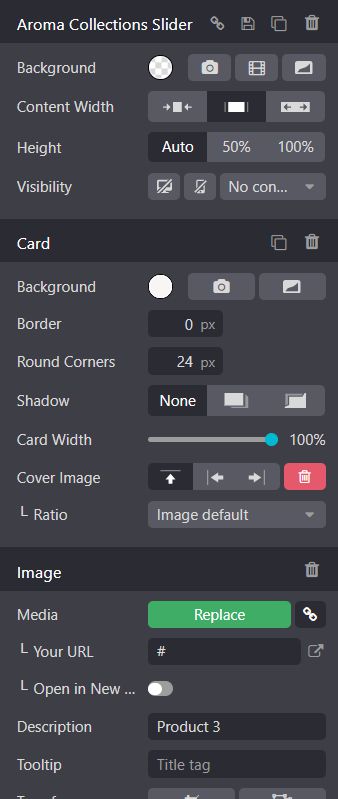
Figure 11 – Customize Aroma Collections Slider
- Customize the slider background using an image, color, or video, and configure visibility conditions as needed.
- Adjust the content width and section height to achieve a flexible and responsive design.
- Personalize each collection card by modifying its background, border, corners, and shadow style.
- Set cover images, control the aspect ratio, and manage card width for a consistent layout.
- Replace media, add URLs, and define whether links open in new tabs.
- Include product titles, short descriptions, and hover tooltips to enhance user interaction.
6.3. Aroma Image Banner
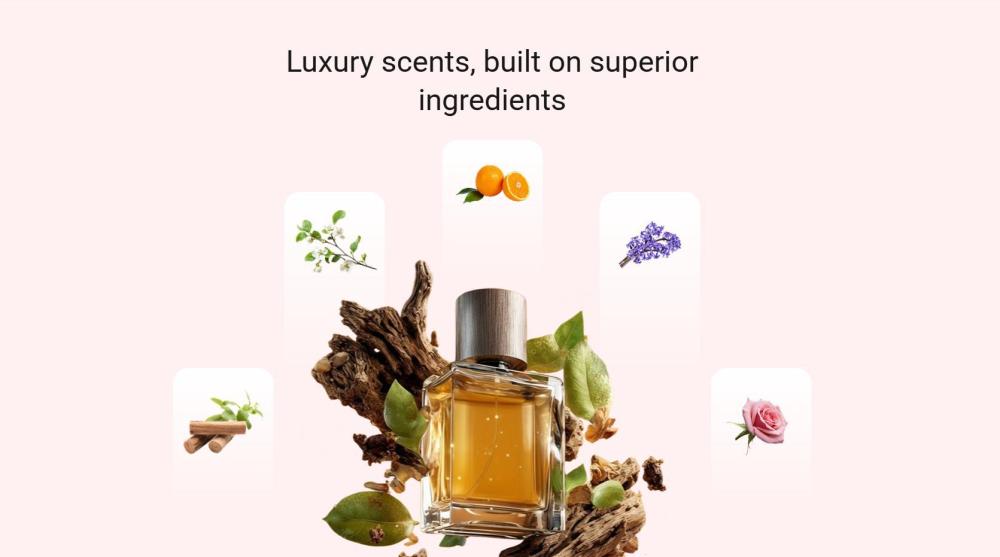
Figure 12 – Select Aroma Image Banner
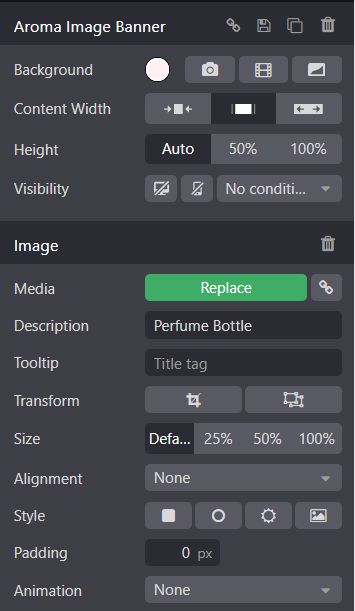
Figure 13 – Customize Aroma Image Banner
- Set the banner background using a solid color, image, or pattern for a fully responsive layout.
- All images are easily replaceable and can be updated directly from the Odoo Website Editor, ensuring proper size and aspect ratio for layout consistency.
- Control image scaling, apply transformations such as zoom or flip, and adjust alignment for precise positioning.
- Add smooth entry or hover animations to make the banner more engaging and dynamic.
6.4. Aroma About Banner
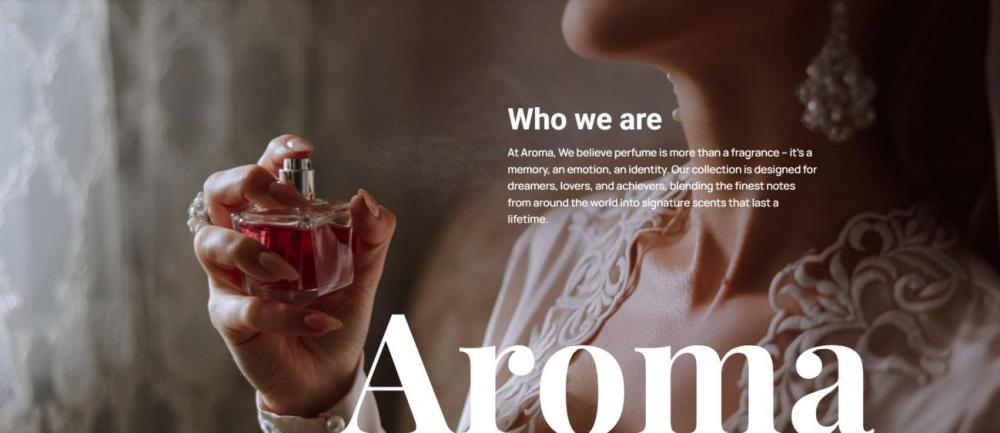
Figure 14 – Select Aroma About Banner
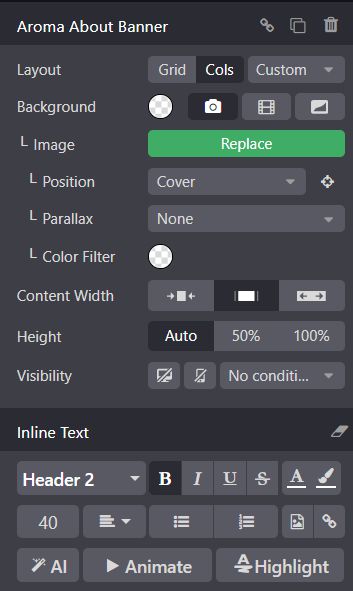
Figure 15 – Customize Aroma About banner
- A dedicated “About” layout designed to showcase your brand identity or company story.
- Choose from Grid, Column, or Custom layouts to structure your About section content effectively.
- Set a solid color, image, or video background with adjustable position (Cover), parallax scrolling, and color filters for visual depth.
- Customize headings, fonts, sizes, colors, alignment, and spacing directly within the banner.
- Add animation or highlight effects to create a dynamic and engaging text presentation.
6.5. Aroma Happy Customers
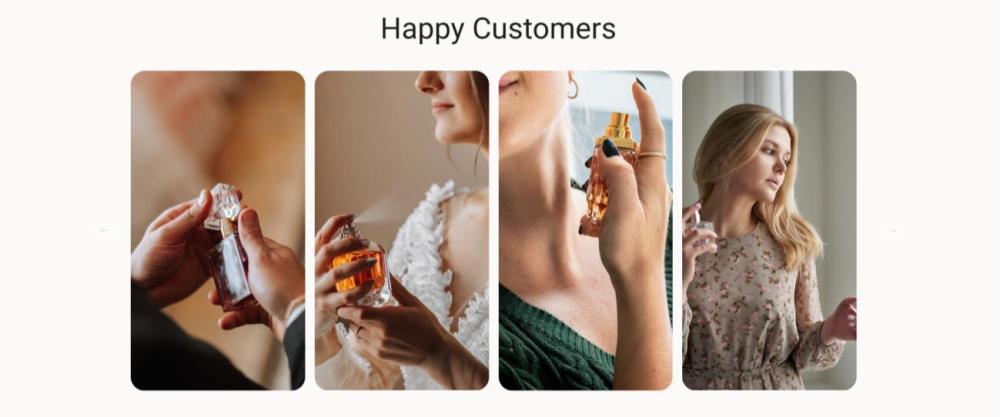
Figure 16 – Aroma Happy Customers
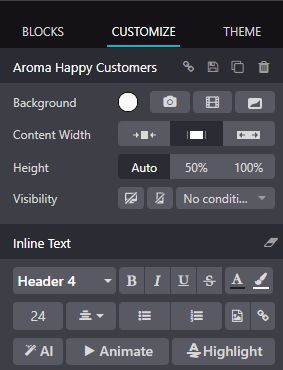
Figure 17 – Customize Aroma Happy Customers
- Display videos or images of happy customers or brand highlights to boost user engagement.
- Set a background color, image, or video to complement the reel style, and adjust content width for full-width or boxed layouts.
- Control the section height and define visibility conditions for specific pages or sections.
- Customize reel cards with background colors, borders, rounded corners, and shadow effects for a refined grid appearance.
- Adjust card width, manage cover image position and aspect ratio for consistent visual balance.
- Replace or upload media, add links, and include descriptive text or tooltips to enhance the reel experience.
7. Product Template
- Go to Website →Editor→Edit→ Blocks→ Products.
- Select the Product Snippet.
- Click on the snippet and choose Customize in the editor.
- Click the Template option and change the desired template.
7.1. Product Detail Template
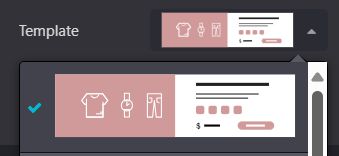
Figure 18 – Product Template
- Backend Configuration for Product Notes
- Navigate to Website → eCommerce → Products → New.
- In the Sales tab, set the Category as Perfume and click Save.
- The Product Notes tab will now be available.
- Enter the Labels and Values and click Save.
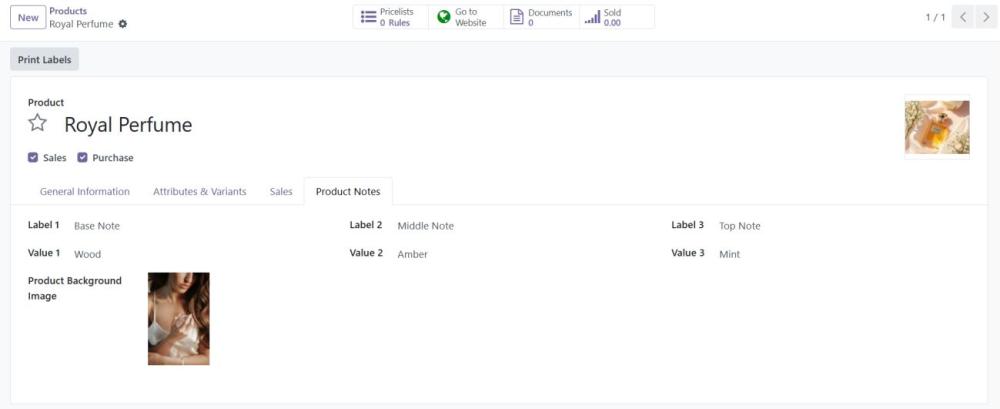
Figure 19 – Product Backend
- Navigate to the Attributes tab in the product form.
- Create a new Attribute with Display Type set to Radio and define the required Attribute Values.
- Assign Extra Prices for each attribute value if applicable.
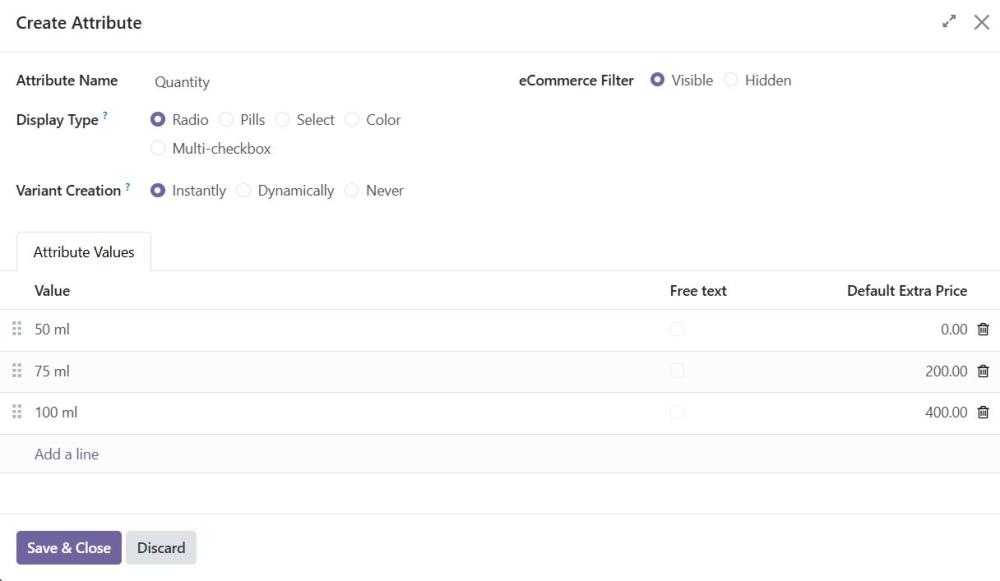
Figure 20 – Create Attribute Backend
- After Creating, add it in the Attributes and variants section
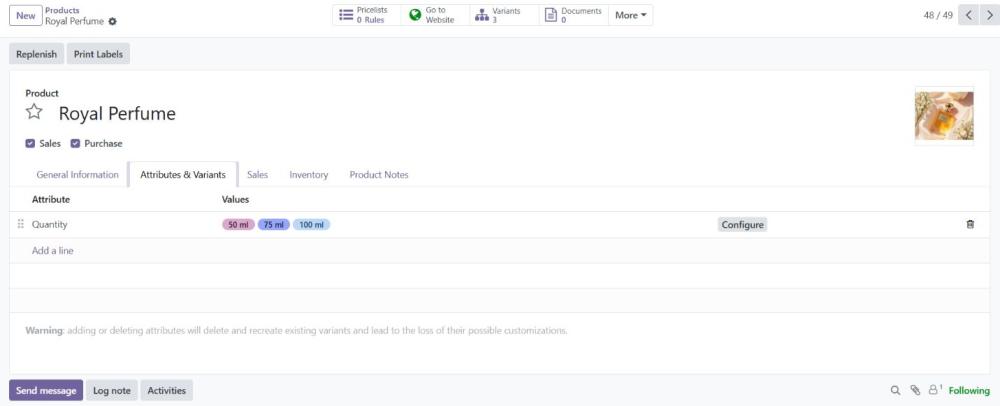
Figure 21– Configure Attributes
- Select the First Template.
- The Product Notes entered in the backend will be displayed.
- Variant Selection is available.
- Click the Shop Now button to Add to Cart.

Figure 22 – Product with Variant template
7.2. Product Slider Template
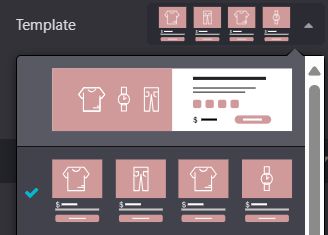
Figure 23 – Product slider template
Backend Configuration for Product Background Image
- Navigate to Website → eCommerce → Products.
- Open the Product Notes tab.
- Add an Image and click Save.
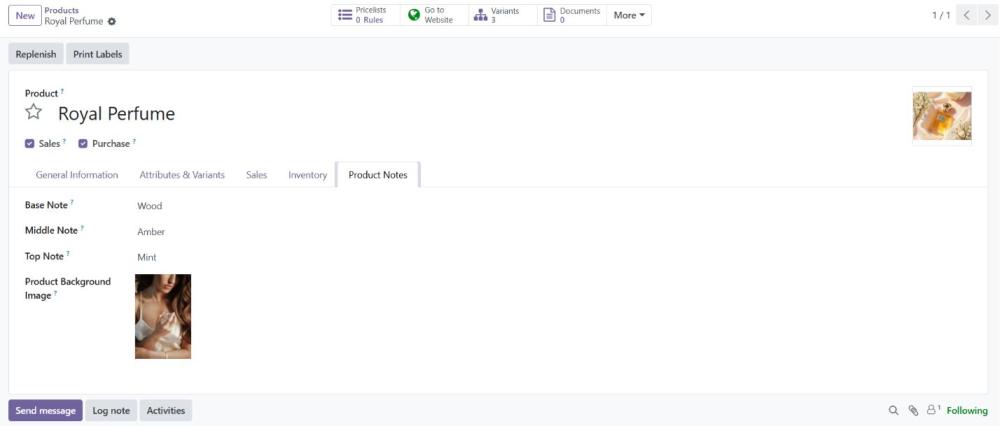
Figure 24 – Add Product Background Image
- Select the Second Template.
- When hovering over the product, the background image added in the backend will be displayed.
- Click the Shop Now button to Add to Cart.
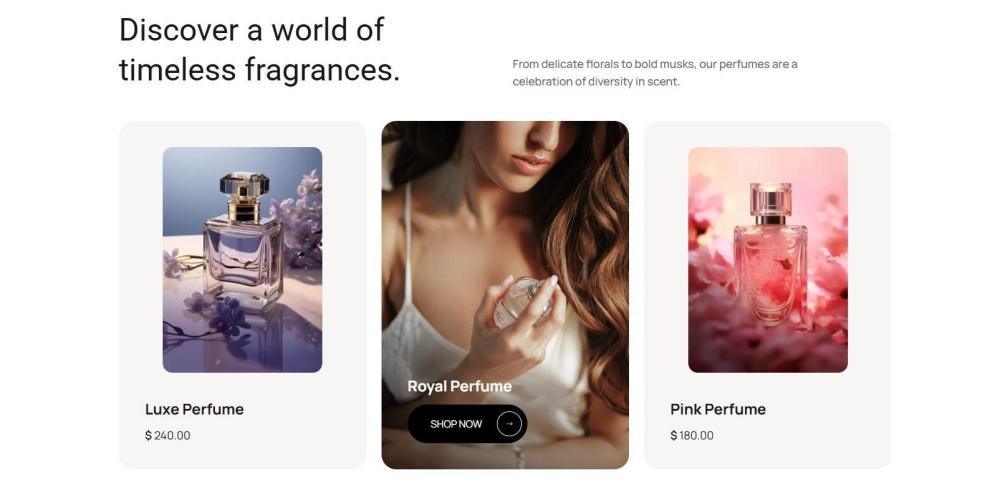
Figure 25 – Product with Hover Image
8. Footer Style
- Go to Website → Editor → Edit, click on the Footer section, and select a Footer Template from the dropdown menu.
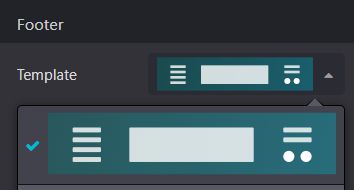
Figure 26– Footer Templat
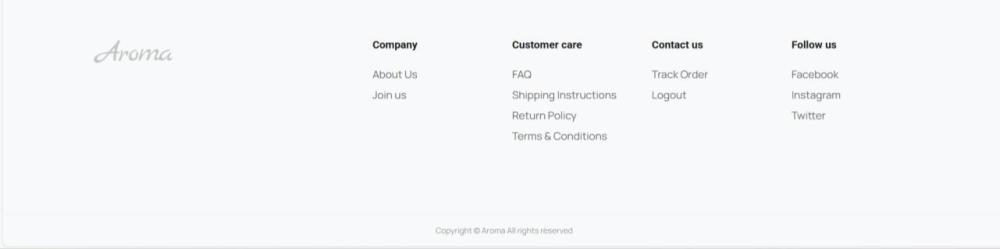
Figure 27 – Footer
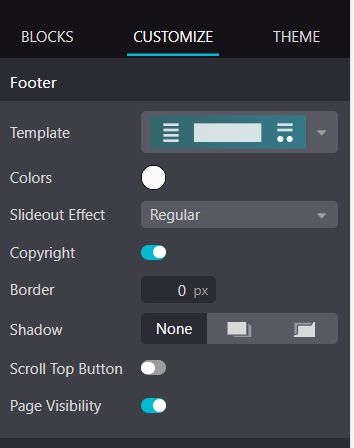
Figure 28 – Footer Customization
- Adjust the footer background and text colors.
- Toggle the option to show or hide copyright text.
- Modify the border width as needed.
- Choose a shadow style for visual depth.
- Enable or disable the “Back to Top” button for page navigation.
- Configure the footer to show or hide on specific pages.
9. Other Pages
- Subtle and elegant color adjustments are automatically applied when using Theme Aroma.
- Button and text colors are updated to align with the theme’s primary accent palette for a cohesive look.
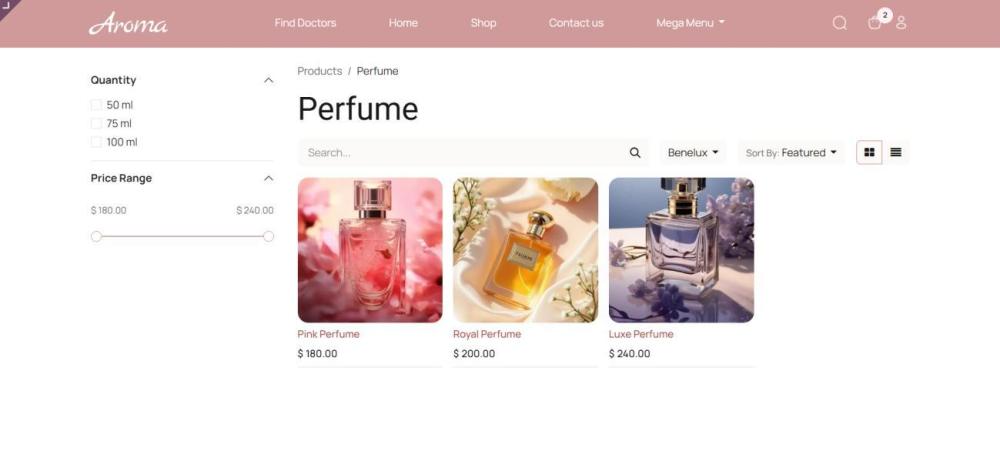
Figure 29 – Shop page
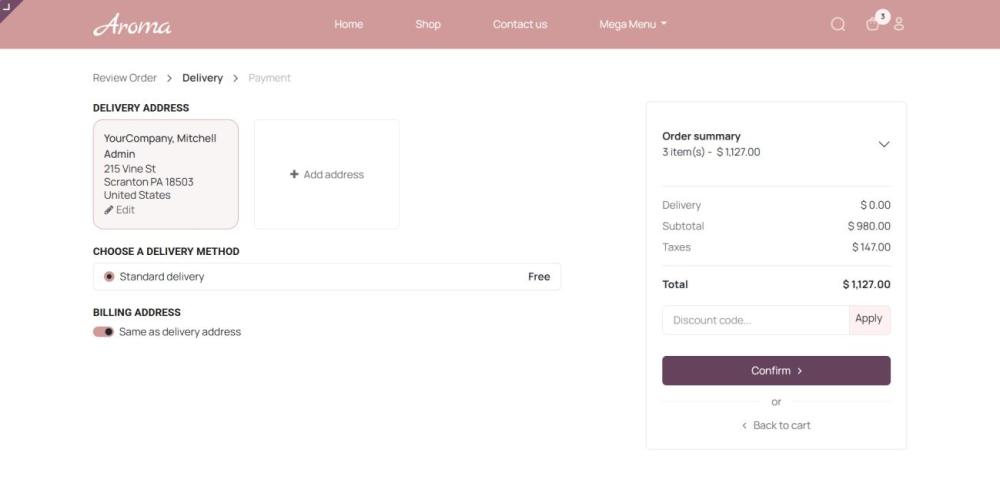
Figure 30 – Order page
10. Technical Requirements / Compatible With:
- Technical Requirements: Odoo Website Module, Aroma Theme Snippets Module.
- Odoo Edition: Community and Enterprise Edition v18.0.
- Supported Platforms: iOS version 15 and above, Android v10 and above.
11. Changes Log / Release Notes
- Version 1.1.0: March 2026
- Minor improvements and performance enhancements to the plugin.
- Version 1.0.0: November 2025
- Initial release
12. Support
If you have questions, use our contact form at webshopextension.com or email at support@webshopextension.com.