
Kategorien
Magento
WordPress
SAP Commerce
Odoo
Shopify
Typo3
Shopware
nopCommerce
Pimcore
Hyvä
OXID eShop





























































1. Product Specification
The Staff Accommodation Management module for Odoo 19 is a comprehensive solution designed to streamline the management of employee housing and on-campus living
facilities. It provides a structured way to handle everything from initial room allocation to automated rent deductions and maintenance tracking.
2. Features and Benefits
- Infrastructure Hierarchy: Manage Campuses, Buildings (Blocks), and Rooms.
- Gender-Based Validation - Automatically restricts allocations based on building types (Ladies/Gents/Mixed)
- Room Capacity Tracking: Real-time monitoring of room occupancy and availability.
- Maintenance Management: Track and manage repair requests with priority levels.
- Payroll Integration: Automated rent deduction based on active room allocations.
- Reporting: Instant access to the Register of Residents
3. Installation
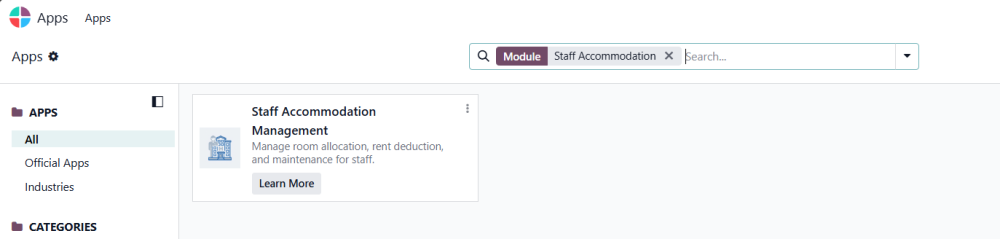
Figure 1: Installation of Staff Accommodation Management
To install the Staff Accommodation Management, follow the steps below:
- Copy or upload the Staff Accommodation Management module into your Odoo addons directory.
- Go to the Apps menu in Odoo.
- Click Update Apps List.
- Search for Staff Accommodation Management
- Locate the module in the results and click Install.
4. Configurations
4.1 Campuses
Define the primary geographical locations for accommodations.
- Navigate to Accommodation > Configuration > Campuses
- Enter the Name, Code, and Address.
- Assign a Campus Warden who will have management rights over this specific campus.
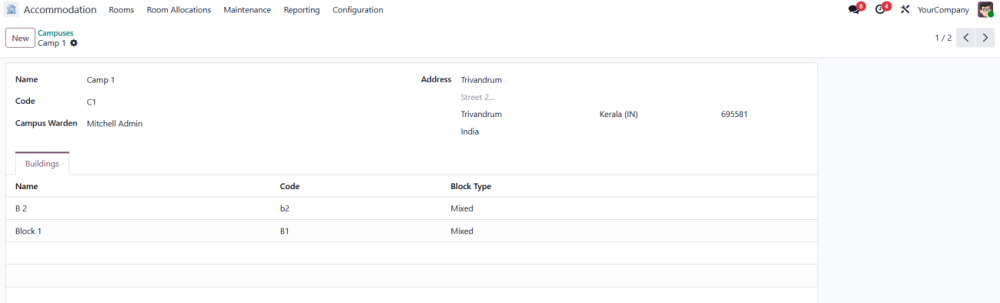
Figure 2 - Campus
4.2 Buildings/Blocks
Each building resides within a campus
- Navigate to Accommodation > Configuration > Buildings / Blocks
- Enter name, code and campus
- Block Types::
- Ladies Block: Restricted to female employees.
- Gents Block: Restricted to male employees.
- Mixed: Open for all.
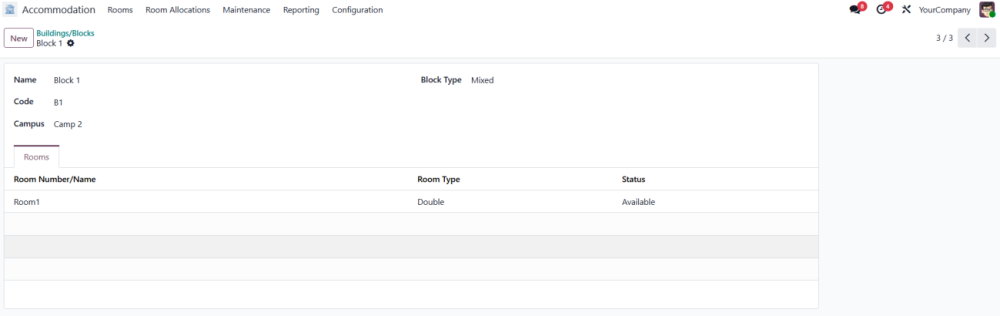
Figure 3 - Blocks
4.3 Rooms
The individual units where employees reside.
- Navigate to Accommodation > Rooms
- Select a Room Type from Single, Double, Studio, Apartment, or Dormitory.
- Enter Name, Campus, Block, Room and Capacity
- Enter Monthly Rent - Base amount for payroll deduction.
- Click the Allocations and Requests smart buttons to create new records or view existing room allocations and maintenance requests.
- The Under Maintenance option will be automatically enabled when there is an active maintenance request for the room.
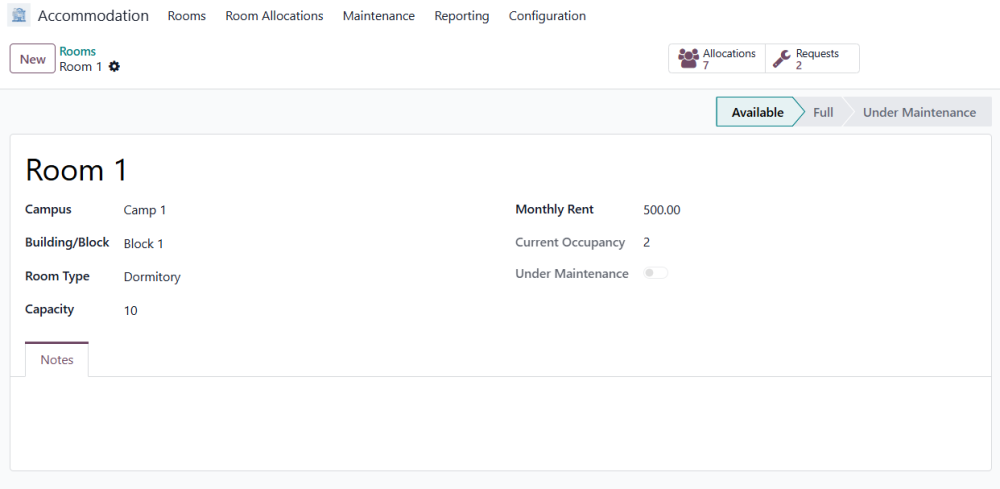
Figure 4 - Room
5. Workflow
5.1 Room Allocation
- Navigate to Accommodation > Room Allocations and click New.
- Select the Employee, Campus, Building, and Room.
- Enter the Security Deposit Amount.
- Enter Monthly Rent - Base amount for payroll deduction.
- Total rent will be calculated automatically.
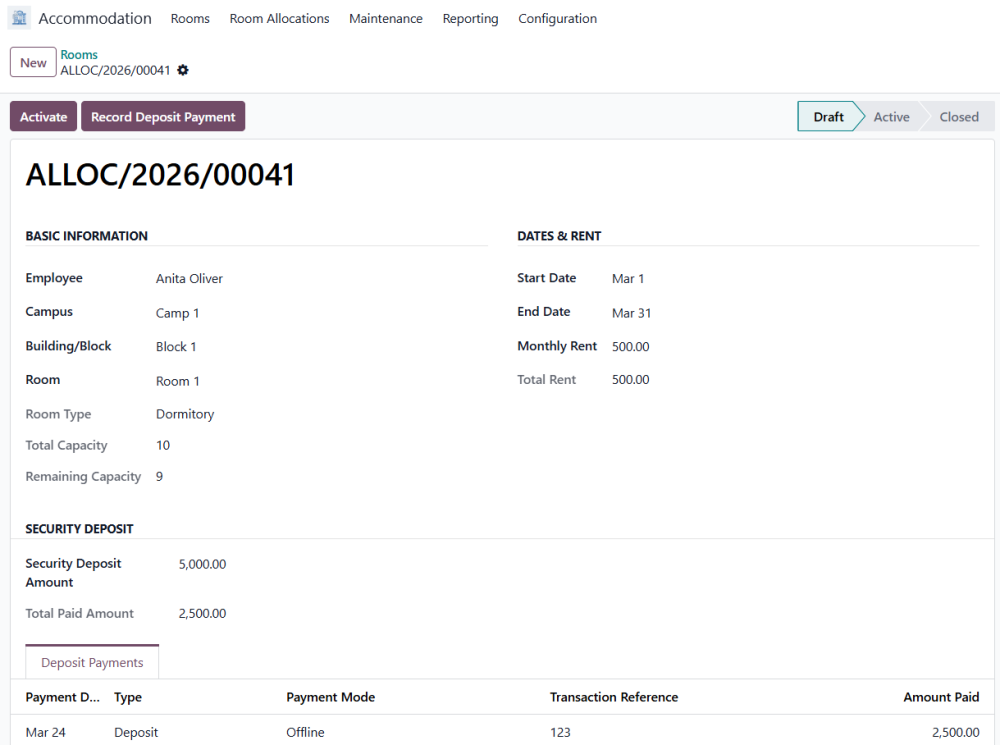
Figure 5 - Room Allocations
- Room Allocation can also be allocated from rooms dashboard.
- Click the Allocation button.
- Details such as campus, block, room and monthly rent will be auto filled.
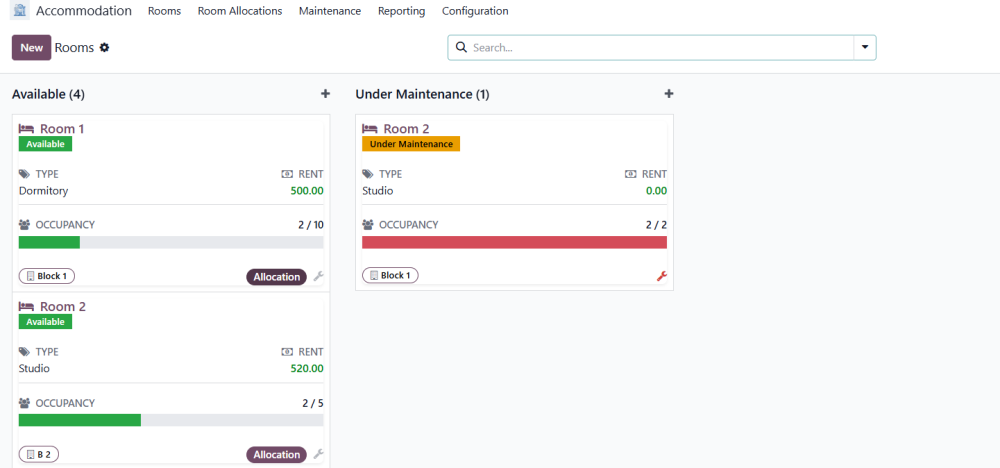
Figure 6 - Room Dashboard
- Click the Record Deposit Payment button
- A wizard will open, enter the amount to be paid
- Select the payment mode and enter transaction reference
- Click confirm to capture the payment
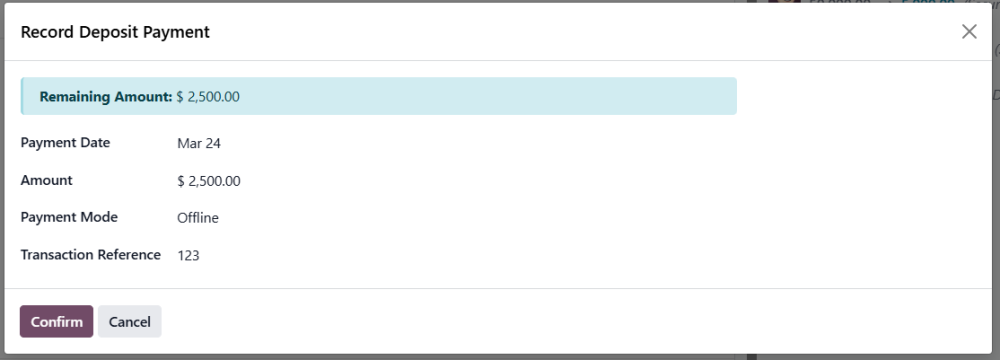
Figure 7 - Record Payment Wizard
Click the Activate button in the header. The system will perform final checks:
- Ensure the employee doesn't already have an active allocation.
- Ensure the room hasn't reached full capacity during the draft stage.
- Validate employee gender against building restrictions.
- Once activated, the room's Current Occupancy count increases automatically.
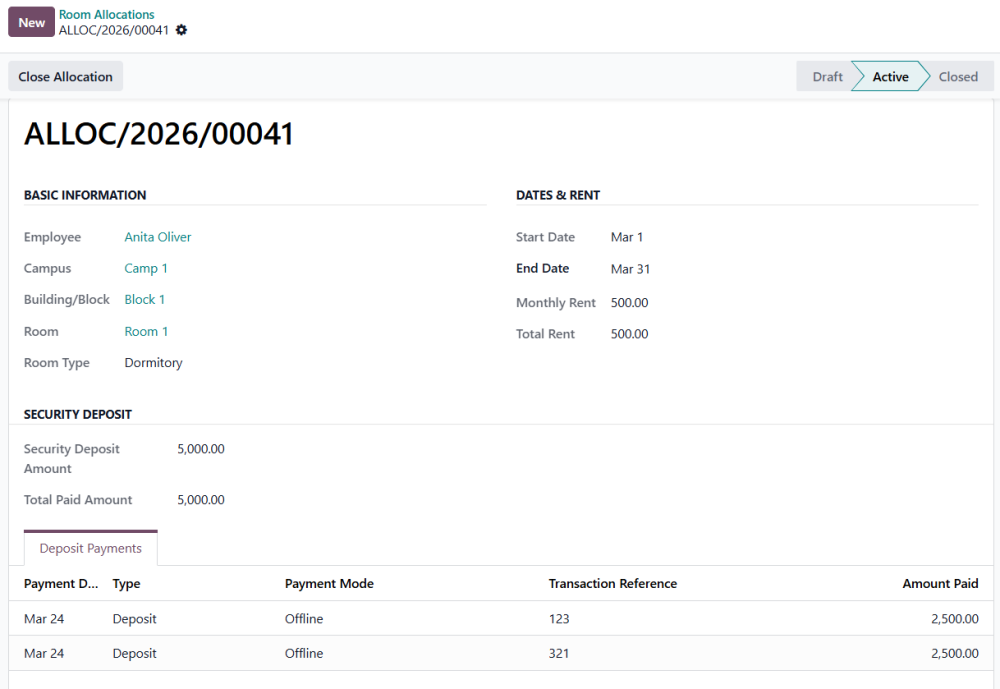
Figure 8 – Active Room Allocation
- When an employee vacates, click Close Allocation. The system prompts for the End Date (defaults to today) and returns the room slot to the "Available" pool.
- After an allocation is closed, a manager can click Refund Deposit to record that the security amount has been returned to the employee.
5.2 Maintenance Requests
Manage repairs and upkeep within the accommodation units.
- Navigate to Accommodation > Maintenance
- Enter the Room, Category (Plumbing, Electrical, etc.), and Description.
- Set the Priority as Low, Medium, or High to guide the technical team.
- Assign a technician to the request.
- Workflow: New -> In Progress -> Completed.
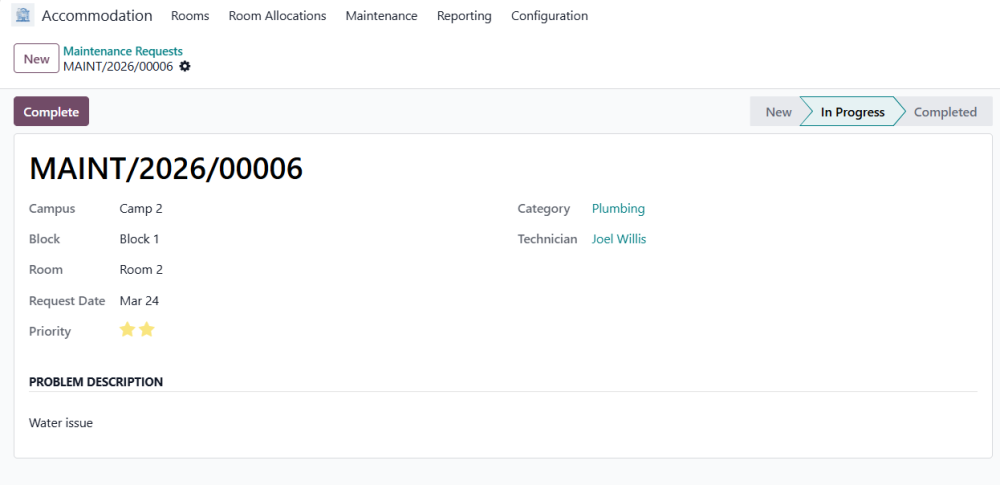
Figure 9 – Maintenance Requests
5.3 HR & Payroll Integration
Employee Profile Updates
- The module automatically updates the HR Employee record. An "Accommodation" tab is available on the employee form showing history. The current Active Allocation, Campus, and Room are stored on the employee record for easy reference.
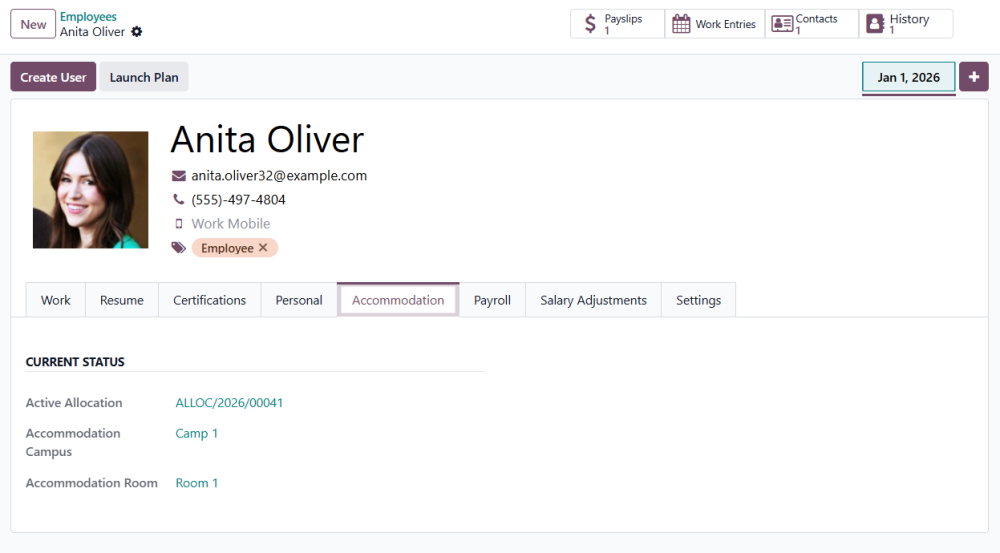
Figure 10 – Accommodation tab in Employee
5.4 Rent Deduction
- The module includes a pre-configured Salary Rule: Accommodation Rent Deduction (RENT_DED). When running a payslip, Odoo checks the employee's active allocation and automatically calculates the deduction based on the Monthly Rent defined in the allocation form.
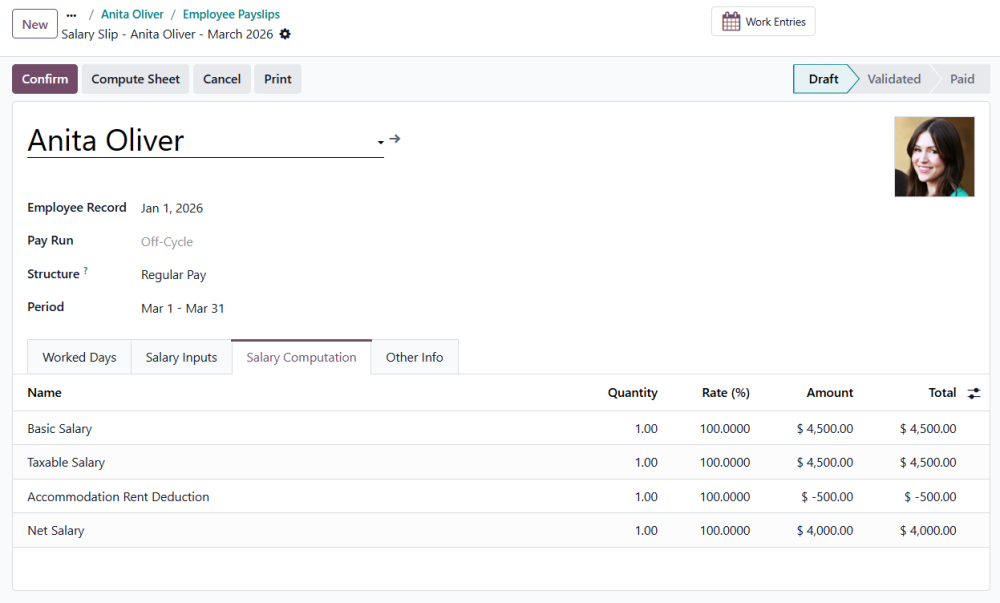
Figure 11 – Accommodation Rent Deduction
5.5 Reporting - Register of Residents
Provides a snapshot of everyone currently staying in company accommodation.
- Navigate to Accommodation > Reporting > Register of Residents
- By default, it filters for "Active Residents" and groups them by Campus and Building.
- Shows total rent collected and occupancy levels.
- Select and Print the Resident Report in PDF.
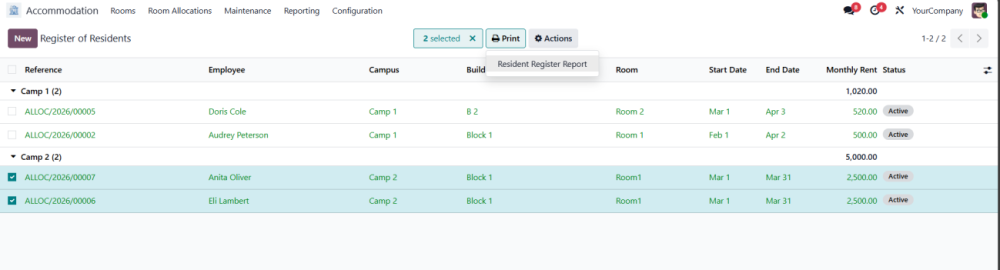
Figure 12 - Register of Residents
5.5 User Groups
The module defines three primary user roles:
- User: Users have the authority to create, confirm, and modify room allocations and maintenance requests.
- Hostel Warden / Site In-charge: Management level restricted to their assigned Campus. They can manage rooms, allocations, and maintenance within their jurisdiction.
- Manager: Administrative level with full access across all campuses,
configuration settings, and financial tasks like security deposit
refunds.
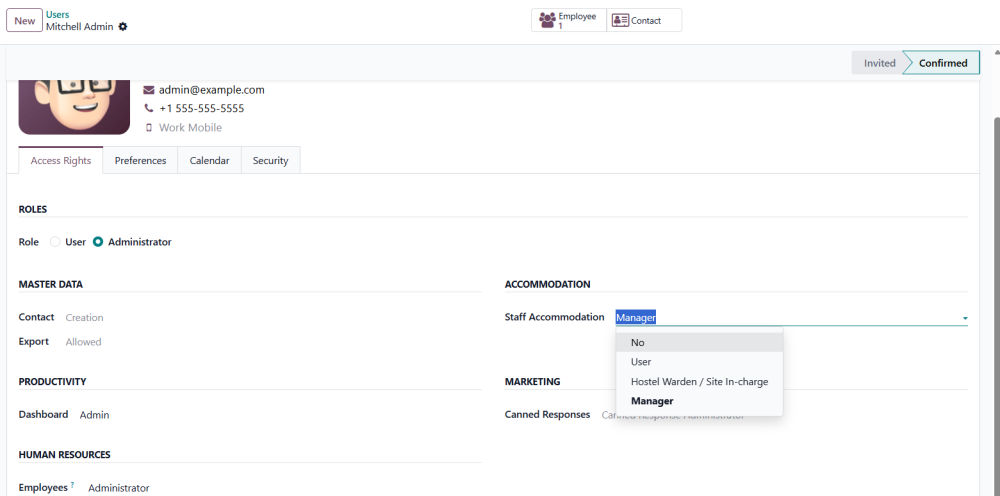
Figure 13 – User Groups
6. Technical Requirements / Compatibility
- Technical Requirements: Requires HR and Payroll Module.
- Compatible With: Odoo 19.0 Enterprise Edition.
7. Change Log / Release Notes
- Version 1.0.0 – April 2026
o Initial release
8. Support
If you have questions, use our contact form at webshopextension.com or email at [email protected].