
Shopware Subscription Plugin integrated with the Wallee payment
Categories
Magento
WordPress
SAP Commerce
Odoo
Shopify
Typo3
Shopware
nopCommerce
Pimcore
Hyvä
OXID eShop





























































INTRODUCTION
The Shopware Subscription Plugin integrated with the Wallee payment enables merchants to offer recurring products or services directly from their Shopware storefront. This plugin allows store owners to configure subscription-based offerings while automating the billing and renewal process. Wallee handles the secure payment processing, including recurring payments ensuring seamless and PCI-compliant transactions. Within Shopware, merchants can manage subscription plans, monitor active subscriptions, and track renewal cycles, while customers can view, manage, or cancel their subscriptions from their account dashboard.
This integration significantly reduces manual effort and increases revenue predictability by automating the entire subscription lifecycle. It supports flexible billing intervals while maintaining accurate synchronization between Shopware and Wallee. By combining Shopware’s ecommerce flexibility with Wallee’s robust payment infrastructure, businesses can deliver a smooth and reliable subscription experience for both admins and customers.
The payment methods available in Wallee are supported by this extension if they allow tokenization and recurring payments. However, the availability of a payment method for live transactions also depends on the terms of Wallee contract and the capabilities of the selected payment processor. The plugin is also designed to support other payment gateways that provide recurring payment functionality.
REQUIREMENTS
To install and configure PitsSubscriptions plugin with Wallee payment plugin in Shopware, the following is required:
- Shopware 6.7.1.2 Community Edition
- Wallee Products Plugin for Shopware 6.7
- Wallee merchant account
INSTALLATION
To install the PitsSubscriptions plugin, follow the steps below:
- Go to Shopware administration, in the left panel, click on ‘Extensions’ and then click ‘My extensions’. In the ‘My extensions’ page, click on ‘Upload extension’ button.
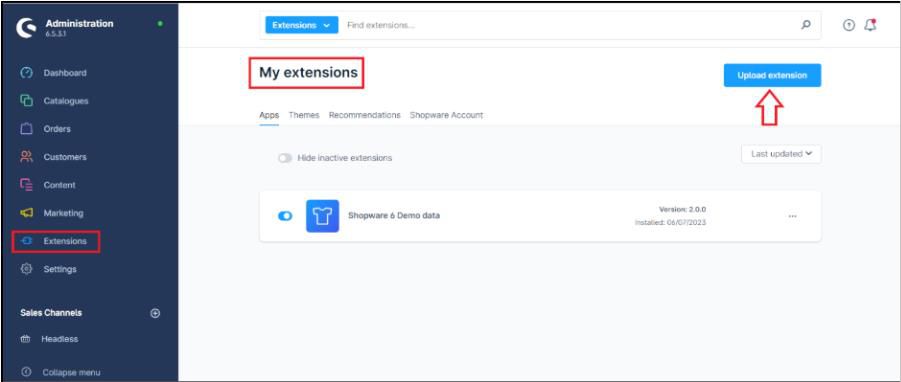
- Select the extension ZIP file from the location where it was downloaded. If the downloaded file is zipped, first extract it — you will find two ZIP files inside. Upload the ZIP file named PitsSubscriptions.zip. Once uploaded, the extension will be successfully added to your Shopware instance, and a success notification will appear. The extension will then be visible under the ‘Apps’ tab in ‘My Extensions’.

- Click on ‘Install’ link against the extension, Subscriptions

- This installs the module that can handle recurring payments for offline subscriptions.
To install Wallee Products for Shopware 6 Plugin
- Navigate to your Shopware root directory.
- Run:
composer require wallee/shopware-6
php bin/console plugin:refresh
php bin/console plugin:install --activate --clearCache Wallee
Important: To enable recurring payments with the Wallee plugin in Shopware Community Edition:
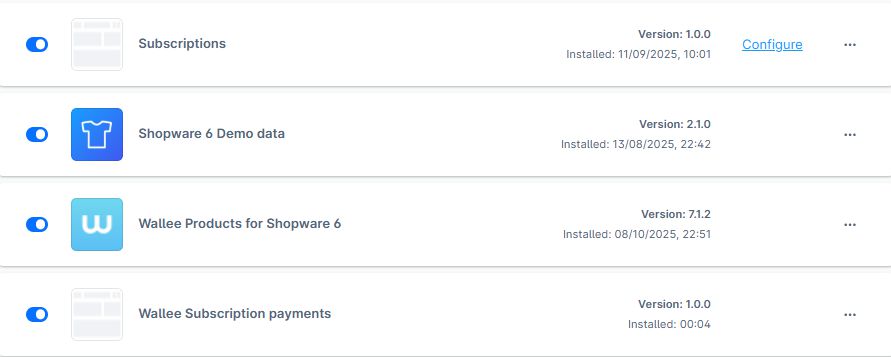
- Install the PitsSubscriptions Plugin (mentioned above).
- Install the Wallee Products for Shopware 6 plugin.
- Finally, install the Wallee Subscription Payments plugin. From the earlier downloaded ZIP file, extract it if needed — you will find two ZIP files inside. Upload the file named PitsSubscriptionWalleeConnector.zip to complete the installation. This ensures the correct plugin is installed and activated.
Then run:
bin/build-administration.sh && bin/build-storefront.sh && bin/console cache:clear
CONFIGURATION
The general settings which are applicable for all products are managed in configure page of the extension. Product specific configurations for Subscriptions can be made in Catalogues > Products > Select a product > Subscriptions.
EXTENSION CONFIGURATION
- Sales Channel: In the configuration page of the extension, select the sales channel for which the configuration should be applied. If ‘All Sales Channels’ is selected the configuration will be saved for all sales channels. If a particular sales channel needs to be configured differently the sales channel can be selected and then the configurations done will be saved for only that sales channel.
- Allow end-user cancellation: By enabling this, the end user can cancel the subscription after purchasing an ‘ACTIVE’ subscription.
- Allow end-user to pause subscription: By enabling this, the end user can pause the subscription after purchasing an ‘ACTIVE’ subscription.
- Allow end-user to resume subscription: By enabling this, the end user can resume the subscription after a paused subscription.
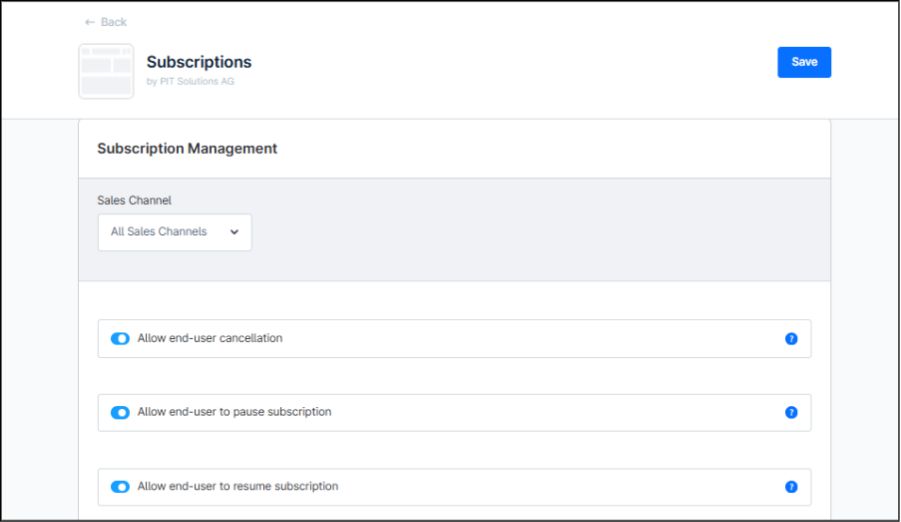

- Renewal request contact mail: This setting specifies the email address customers can use to contact the administrator if they wish to request a change to their subscription renewal date.
After completing the configurations, click on ‘Save’ button on the top right corner.
SUBSCRIPTION CONFIGURATION IN PRODUCT PAGE
After enabling the extension, a new tab called ‘Subscription’ appears on the product page. This tab includes subscription settings and subscription pricing details for the specific product.
The tab is divided into two sections: one for Subscription Settings and the other for Pricing.
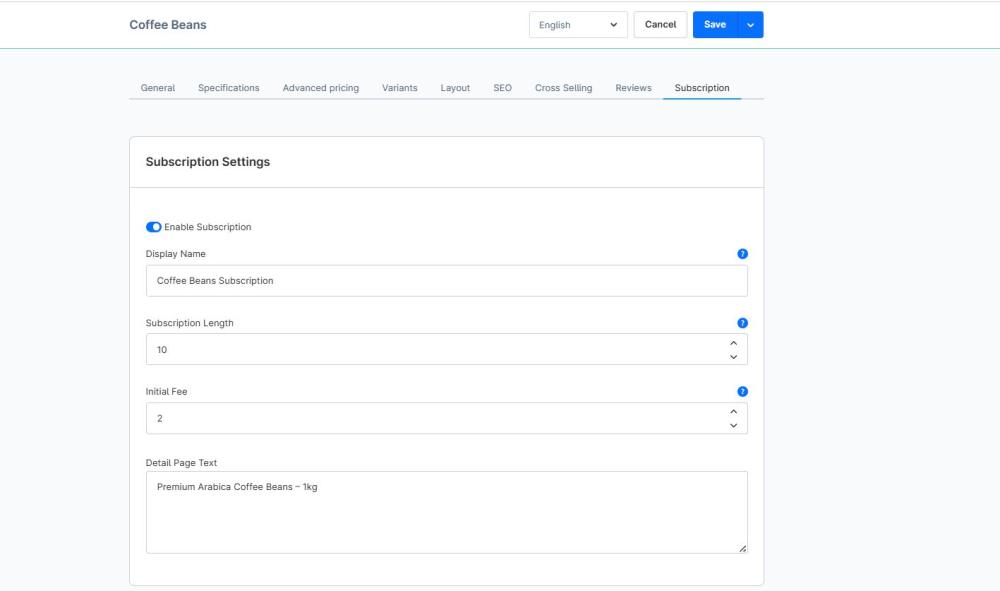
The section ‘Subscription Settings’ contains following fields:
- Enable Subscription: The admin can enable the field to configure the product to a subscription product.
- Display Name: The field value is rendered as a subscription display name in product detail page before subscription options.
- Subscription Length: Set the duration (in numbers) for which the subscription will be valid. This value is rendered on product detail page.
- Initial Fee: Specify an initial fee for the subscription product. This is a one-time fixed charge that is collected upfront when a customer signs up for the subscription.
- Detail Page Text: Text which can be added along with subscription options
The next section, ‘Pricing,’ lists the subscription pricing and available discount options, along with the recurring amount for each subscription option, which applies to all subsequent orders.
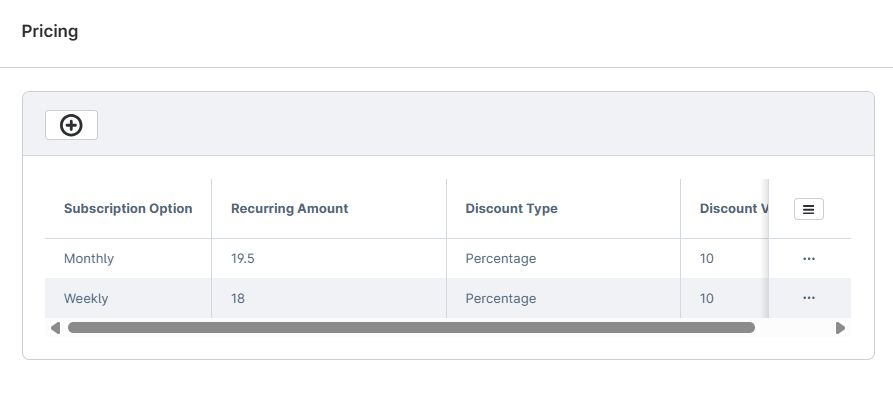
Click on (+) button to create new form to add pricing details.
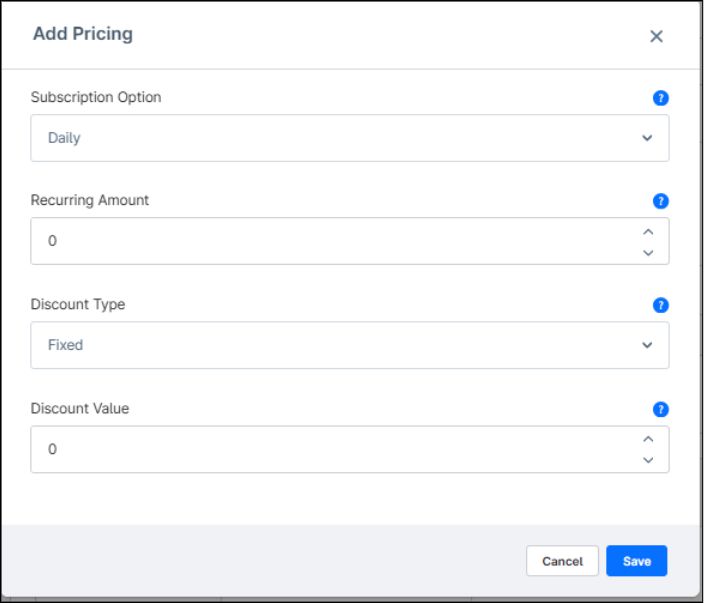
- Subscription Options: The available subscription plans include daily, weekly, monthly, and yearly.
- Recurring Amount: This is the price charged on all subsequent orders.
- Discount Type: The discount type can be either fixed amount or percentage, which is deducted from the total of recurring orders.
- Discount Value: The discount amount, based on the selected discount type, can be either a fixed sum or a percentage.
Clicking on ‘Product save’ will save the subscription details.
The subscription purchase options will be shown on the product detail page for each subscription-based product.
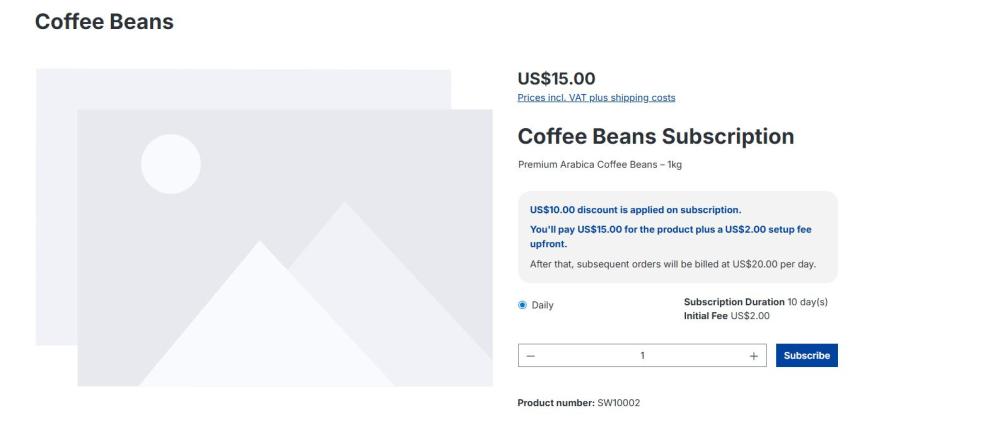
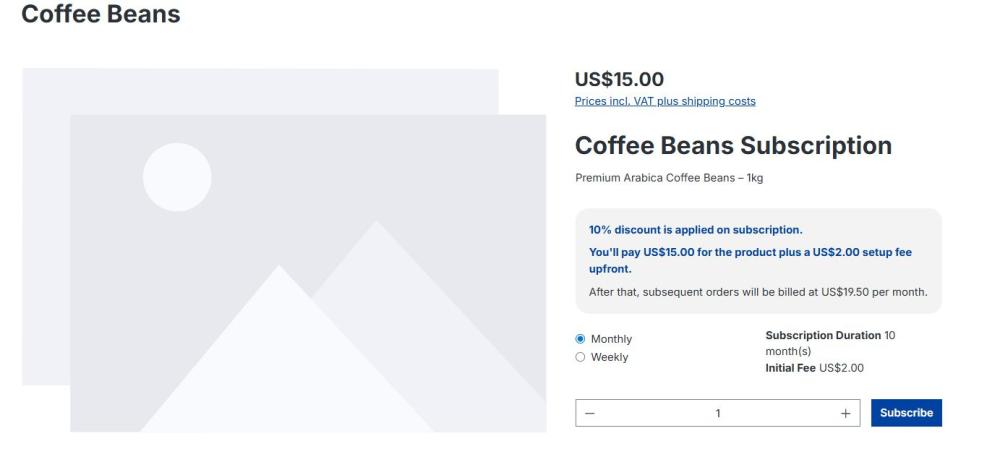
Selecting a subscription option—such as weekly or monthly—will display the discount applied to subsequent recurring orders and the initial price added to the cart when the user chooses to purchase the subscription. It will also show how subsequent orders are billed, for example, on a weekly or monthly basis.
Additionally, the subscription duration reflects the interval at which recurring orders are placed, based on the selected subscription option.
ADDING TO CART
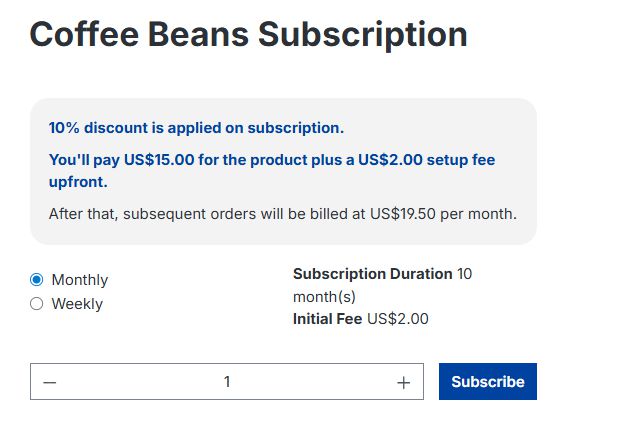
After choosing a subscription option and then clicking on ‘Subscribe’ button. It gets added to cart. The cart line item details the subscription option selected, initial setup fee incurred and the duration of subscription like it is shown in Figure.
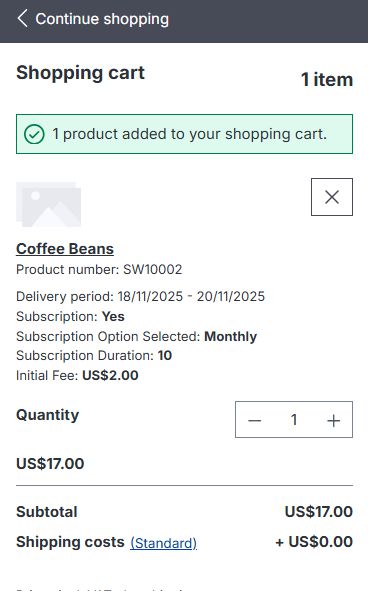
Note: Combination of subscription products and normal products are not allowed in one checkout.
Note: Only one type of subscription product can be added in one checkout.
Important Notes
- Guest Purchase Restriction
Subscription products cannot be purchased by guest customers.
Only registered and logged-in users are allowed to buy subscription-based products.
This ensures proper account management, billing, and access to subscription benefits. - Payment Method Policy
Once a subscription product has been purchased, the payment method used for that subscription cannot be changed.
CHECKOUT AND ORDER PLACEMENT WITH SUBSCRIPTION PRODUCT
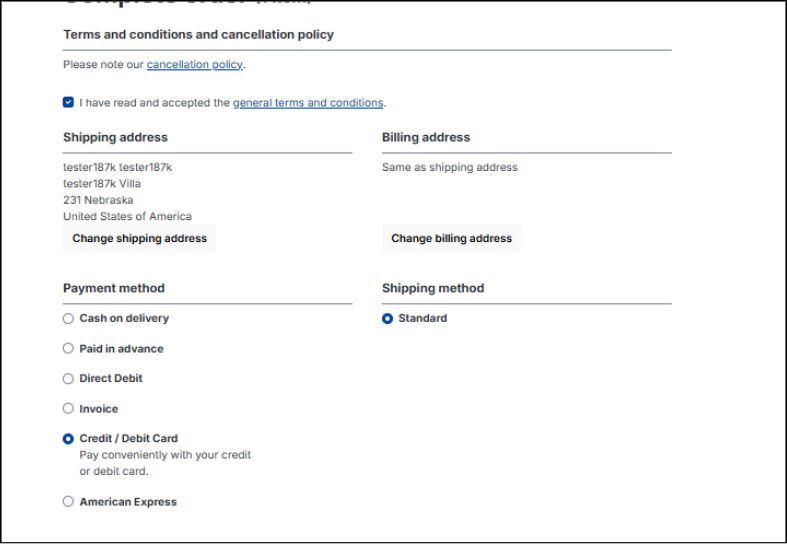
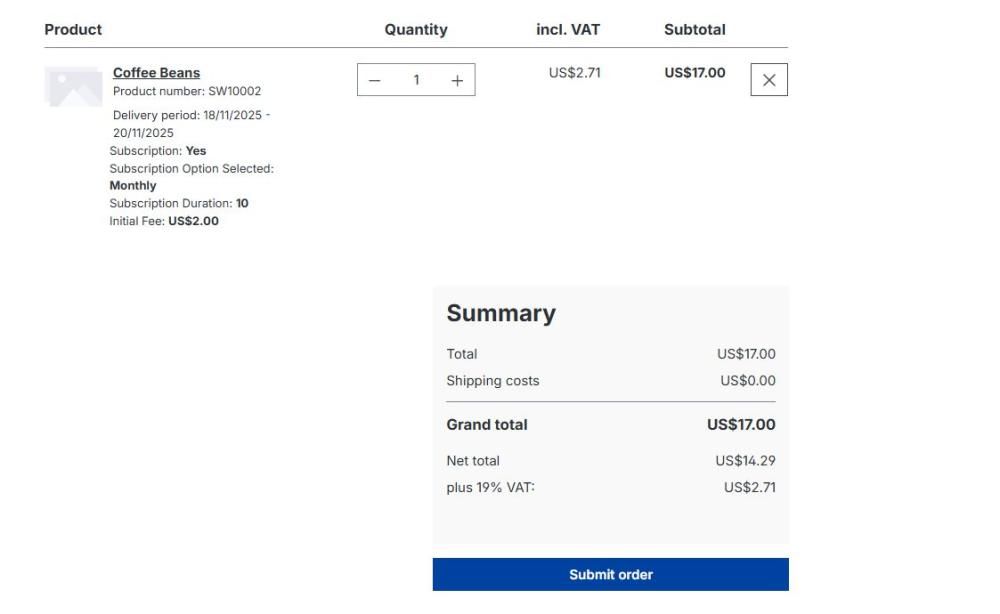
Select a payment method on the checkout page and click ‘Submit Order’ to place the subscription. The subscription will be created and payment processed based on the selected payment method, whether offline or online.
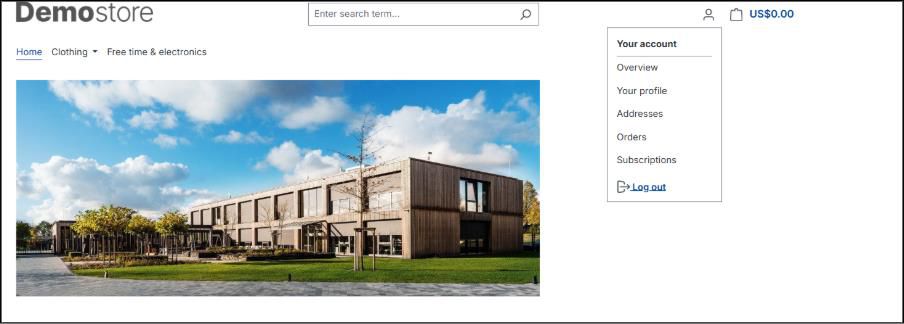
The purchased subscription can be viewed on the customer’s Your Account page, where all subscriptions associated with the customer are listed.
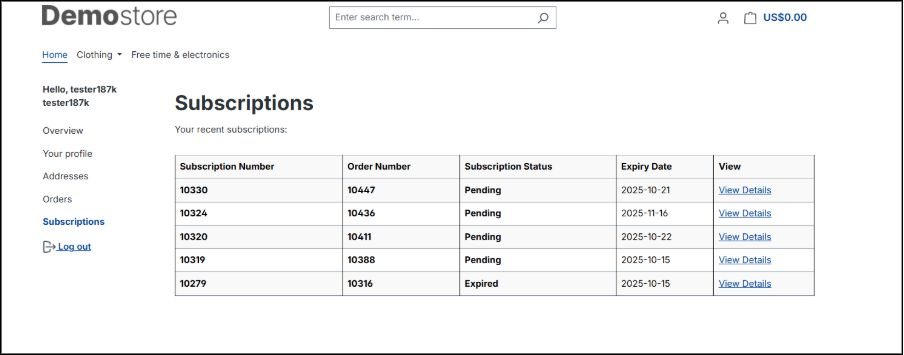
Clicking on View Details navigates to the Subscription Detail Page, which displays the customer addresses, subscription cycle information, product details, and associated child orders.
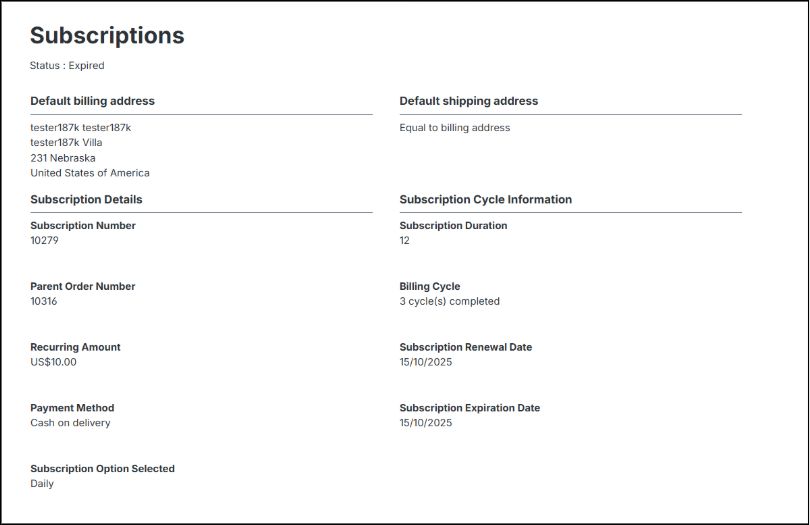
The SUBSCRIPTION DETAILS section displays
- Subscription Status:
Shows the current state of the subscription, which can be updated by the admin. - Recurring Amount:
Amount to be incurred for child orders in subscriptions - Payment Method:
Displays the payment option used for the subscription - Subscription Option Selected:
Shows the specific plan or tier chosen by the user (eg: Monthly, Yearly) - Parent Order Number:
Displays the original order from which the current subscription or related orders were generated, used to track recurring or linked transactions
The subscription cycle information displays the cycle information of subscription with subscription duration, billing cycle, subscription renewal date and expiration date.
- Subscription Duration:
Defines the length of subscription - Billing Cycles:
Shows the number of billing periods that have been successfully completed for the subscription. - Subscription Renewal Date:
Indicates when the subscription is scheduled to renew automatically. - Subscription Expiration Date:
Specifies when the current subscription will end if not renewed.

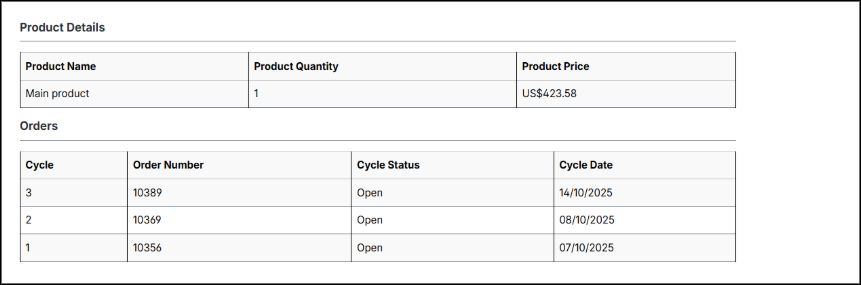
The product details section displays the product included in the subscription, and the orders section lists the completed subscription cycles along with their respective cycle dates.
SUBSCRIPTION MANAGEMENT
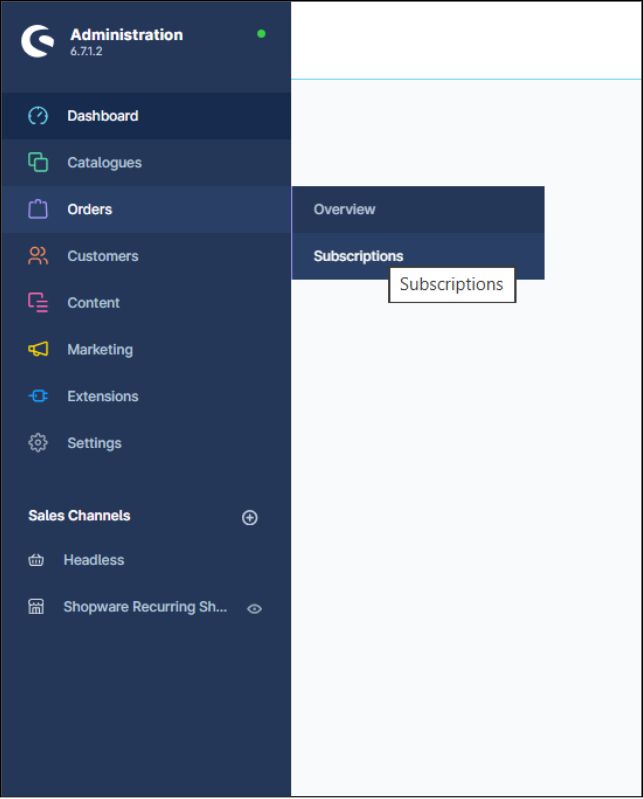
Subscription list can be accessed in Shopware from Orders -> Subscriptions. This will be displayed after installing and activating Subscription plugin.
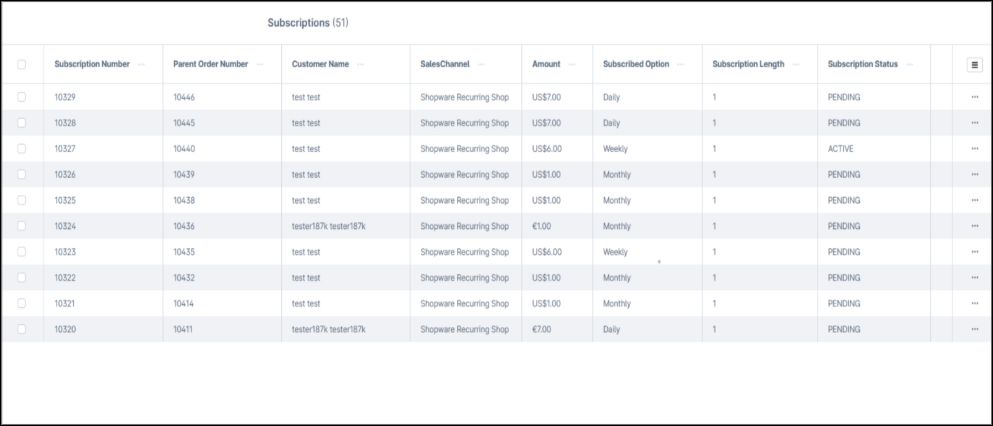
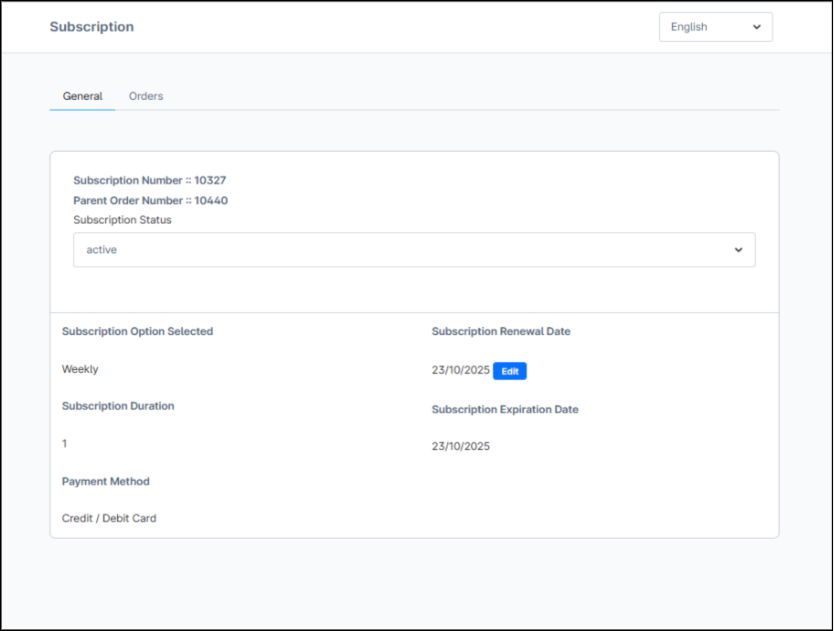
Click on the subscription number to view the details of any subscriptions. Subscription details display two tabs – General, Orders.
Note: To run recurring orders, the subscription should be set as ACTIVE.
The ‘General’ tab displays Subscription status, renewal and expiration date. Also it shows Payment method, Subscription Duration and Subscription Option Selected.
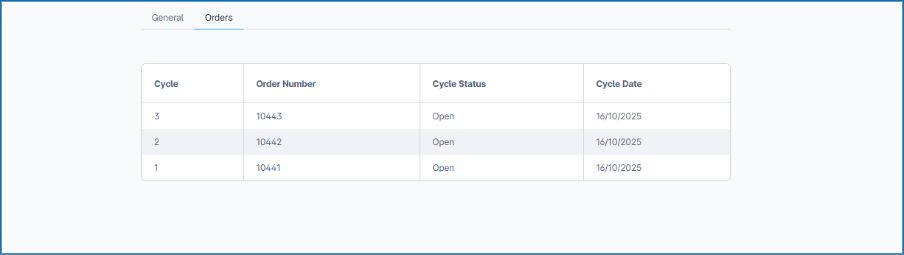
The ‘Orders’ tab list of child orders linked to the subscription, with each entry representing a billing cycle.
When a customer requests a change to their subscription renewal date, the admin can update and set the new renewal date accordingly.
INSTRUCTIONS FOR OTHER PAYMENT PROVIDERS TO INTEGRATE RECURRING PAYMENT GATEWAYS
In addition to Wallee, this extension can also support other payment gateways. For handling recurring payments, the subscription plugin calls the recurringSubscription function in the Payment Handler file. Payment providers should implement recurringSubscription (if not already present).
- If a recurring() function already exists, it should be called or integrated inside recurringSubscription().
- The recurringSubscription function should use the previously stored payment token to process subsequent subscription charges.
HANDLING RECURRING PAYMENTS: ONLINE V/S OFFLINE
The subscription plugin triggers the recurringSubscription function in the Payment Handler to process recurring charges. Payment providers should implement this function and handle subsequent payments using the previously stored payment token.
1. Online Payments
- Payments are processed immediately through the payment gateway.
- The subscription plugin triggers the recurringSubscription function and it should use the stored token to trigger the charge via the gateway API.
- Any success or failure response from the gateway should be handled accordingly (e.g., updating subscription status).
2. Offline Payments
- Offline payments (e.g., bank transfer, cash on delivery) are not automatically processed.
- Mark the subscription as PENDING until payment is received. Update subscription status once payment is confirmed.
CONFIGURING WALLEE MERCHANT ACCOUNT
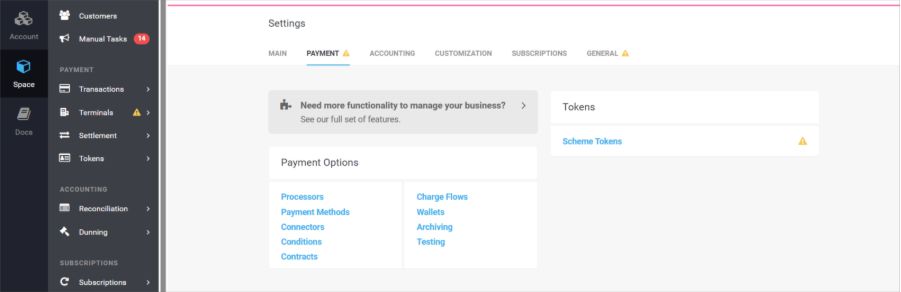
Go to https://app-wallee.com/user/signup to create a wallee account. First configure Wallee merchant account with payment processors and payment methods. Navigate to Space - >Settings -> Payment.
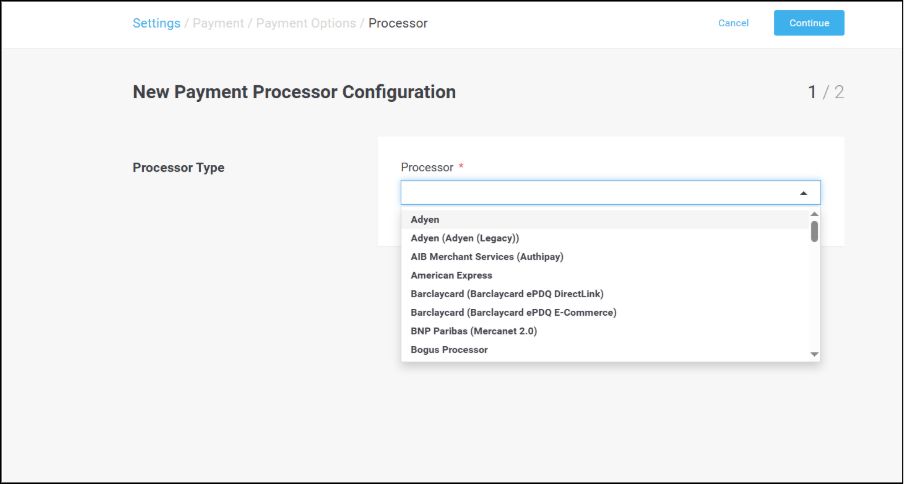
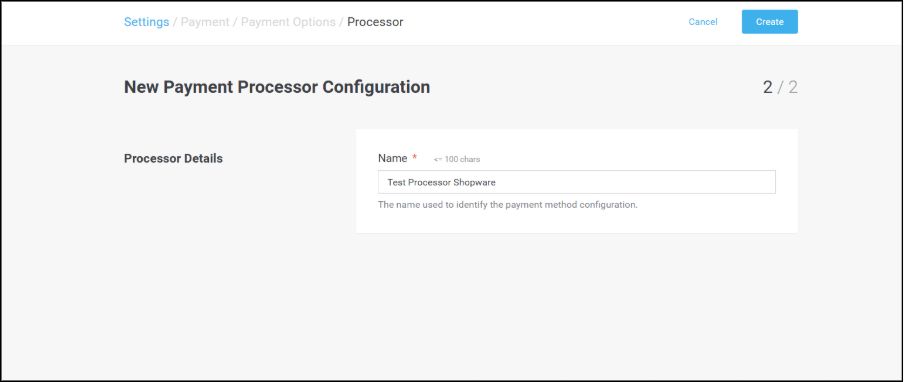
Create a processor by selecting a Processor Type and Processor name
Create a new processor name and click on ‘Create’
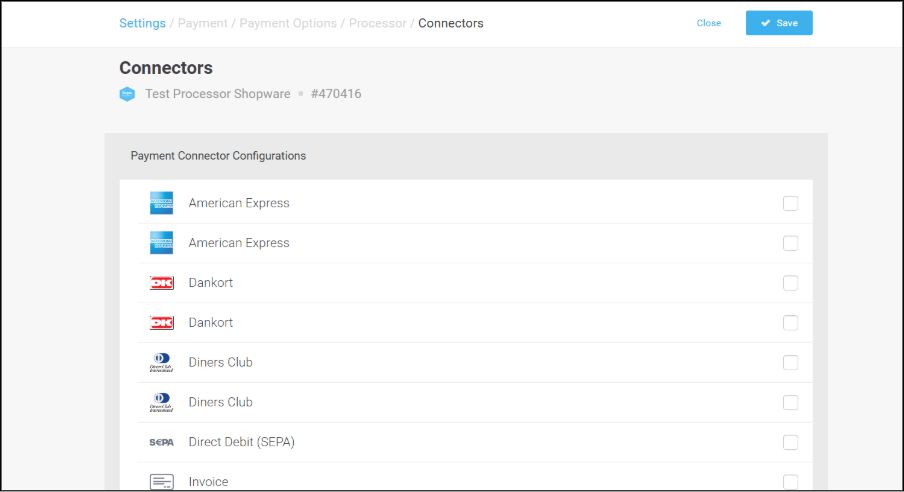
Configure Connectors and click on ‘Save’.
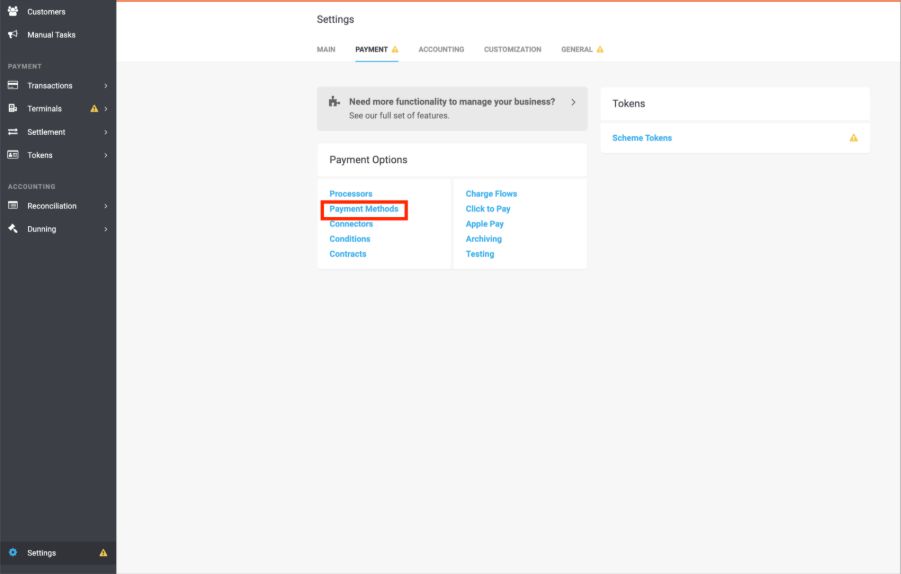
Next, go to Settings → Payment → Payment Methods in your Wallee merchant account to configure available payment options.
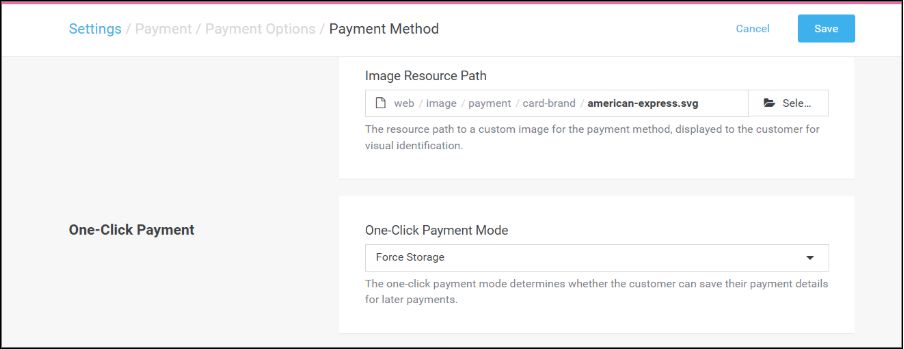
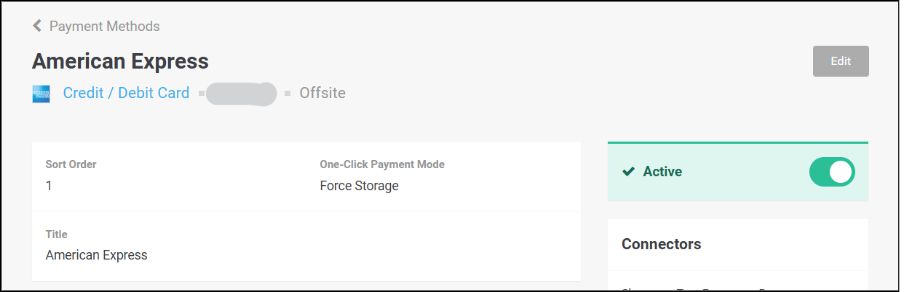
Important: Ensure that One-Time Click Payments is set to "Force Storage".
This setting allows Wallee to securely store payment method tokens, which are required for handling recurring payments.
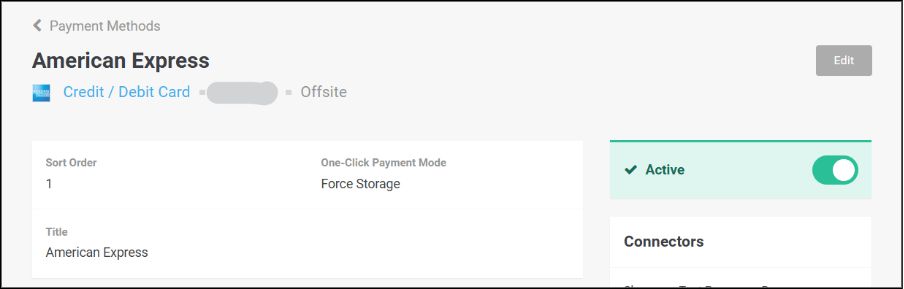
PAYMENT METHOD MANAGEMENT
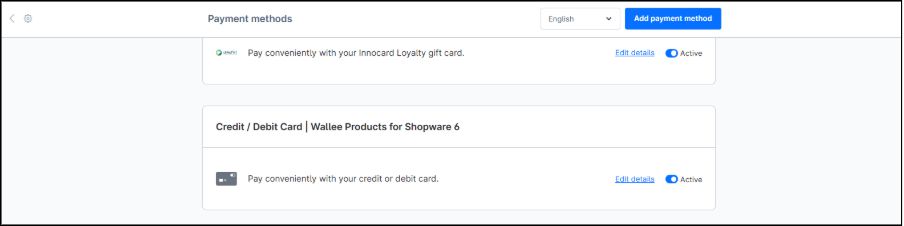
The list of available payment methods during checkout is controlled by the Wallee portal.
If you want to disable a payment method:
From the Wallee Portal:
- Go to:
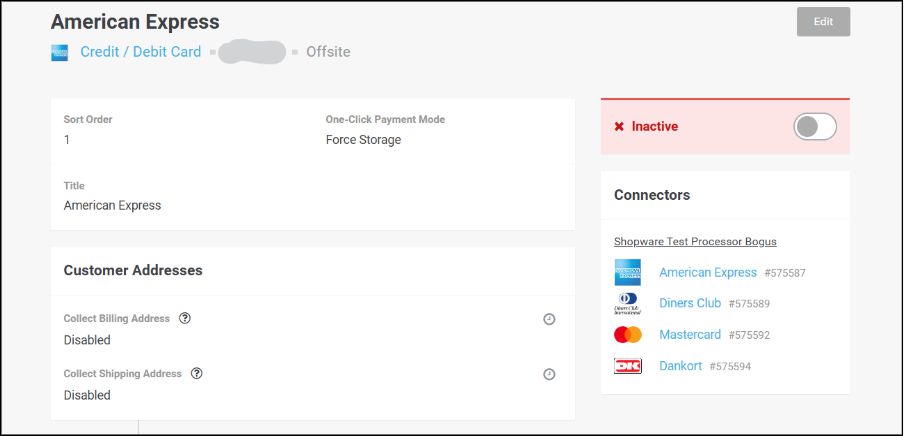
Space → Settings → Payments → Payment Methods - Choose the payment method you'd like to deactivate.
- Use the toggle switch to disable it — it should appear as inactive once turned off.
CONFIGURING WALLEE PLUGIN FOR WALLEE PAYMENTS
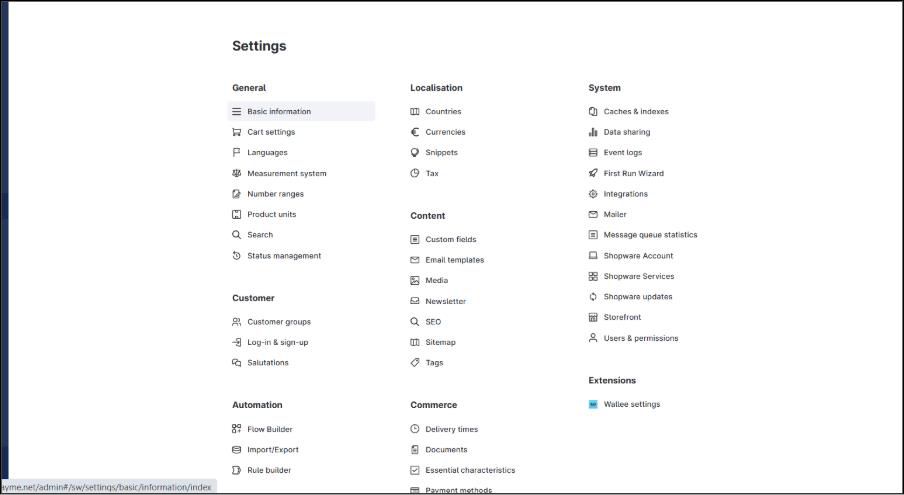
To connect your Shopware store with Wallee, follow these steps:
- In the Shopware admin, go to:
Settings → Extensions → Wallee - Enter the required API credentials:
a. Space ID
b. User ID
c. API Key - Click Save to complete the configuration.
Finding your Space ID
You can locate your Space ID in the Wallee portal by navigating to your Space overview. Example: Space ID = 76231
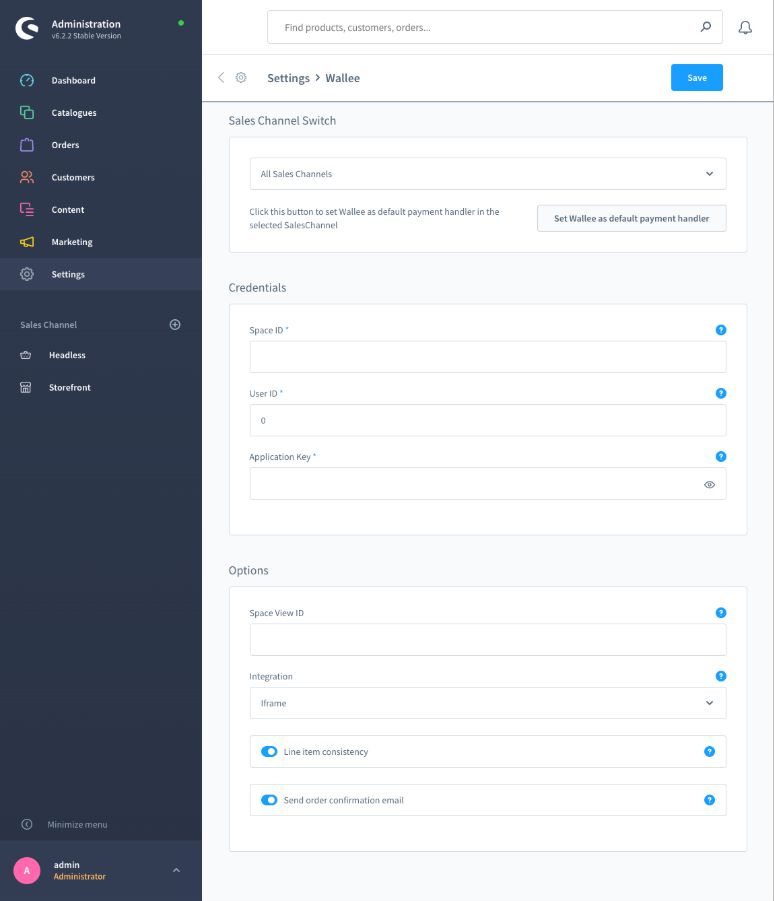
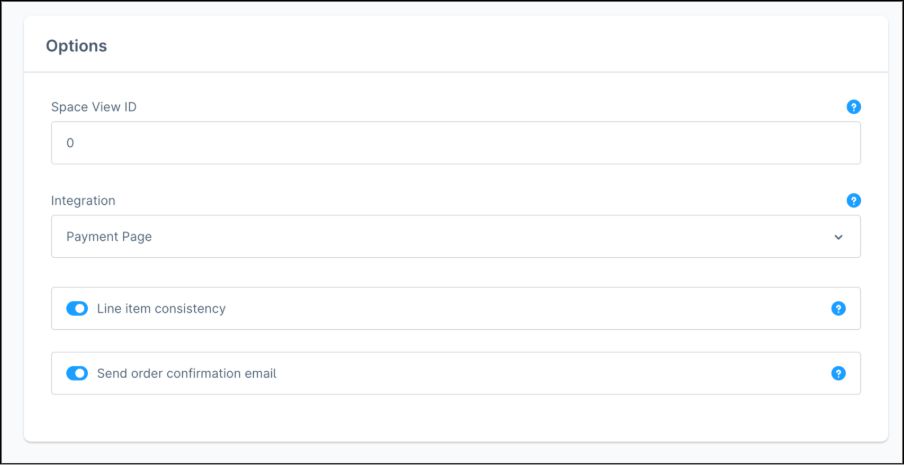
Wallee Plugin Configuration Options
Space View ID
This field enables you to apply custom styling to the payment form and the hosted payment page. The styles are managed within your Space settings in the Wallee portal.
Note: If you're not using a custom view, leave this field blank.
Integration Mode
This setting controls how the payment form appears during the checkout process. The available display options include:
- IFrame: Integrates the payment form directly into the Shopware checkout page, offering a smooth and uninterrupted user experience.
- Payment Page: Redirects the customer to a standalone payment page hosted by Wallee.
Line Item Consistency
Shopware calculates taxes individually for each line item, which may cause minor rounding differences (usually just a few cents) between the total tax and the displayed order total.
If the "Enforce Consistency" option is activated in the Wallee portal, orders with these small discrepancies will be rejected.
Recommendation: Unless your business requires strict tax validation, it's best to leave this setting disabled to prevent potential payment issues.
Order Confirmation Emails
By enabling this option, Shopware will send order confirmation emails directly, instead of relying on the Wallee portal to handle this task.
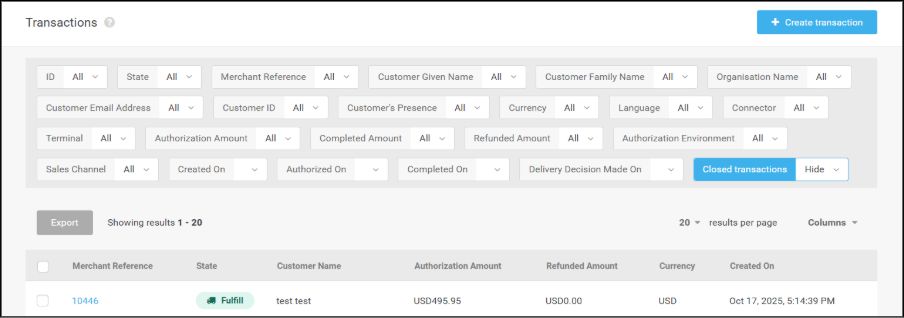
When a customer selects an enabled Wallee payment method during the storefront checkout, they are redirected to either a hosted Payment Page or an embedded Iframe Page, where the payment is processed. Upon successful completion, the transaction details are automatically synced with the merchant’s Wallee account in Space -> Payment -> Transactions.
ERROR LOGS
Error Log provides information about transactions performed by Wallee and Subscription Logs that could not be completed successfully. Error details provided by Wallee payment gateway will be logged and displayed in ‘Subscription Log Viewer’ setting under Settings -> Extensions.
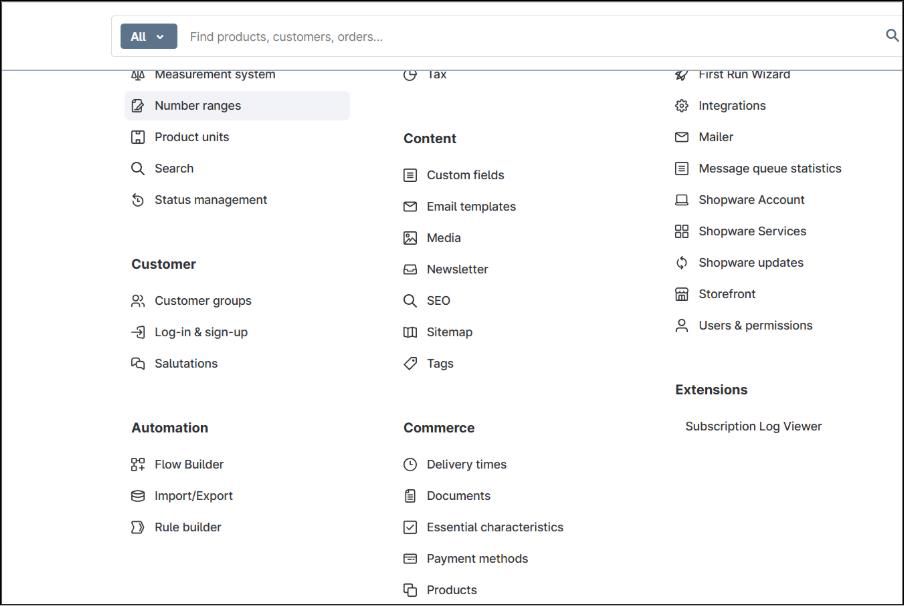
It lists the errors during subscription processes and wallee payment gateway. Only logs related to subscription plugin and wallee plugin are listed in logs to pinpoint the errors.
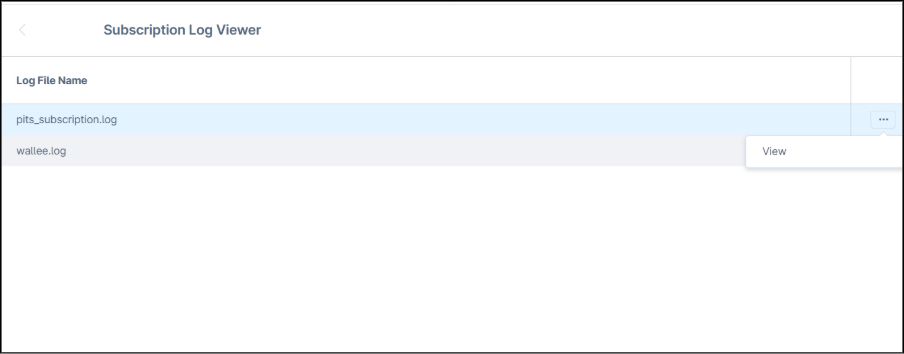
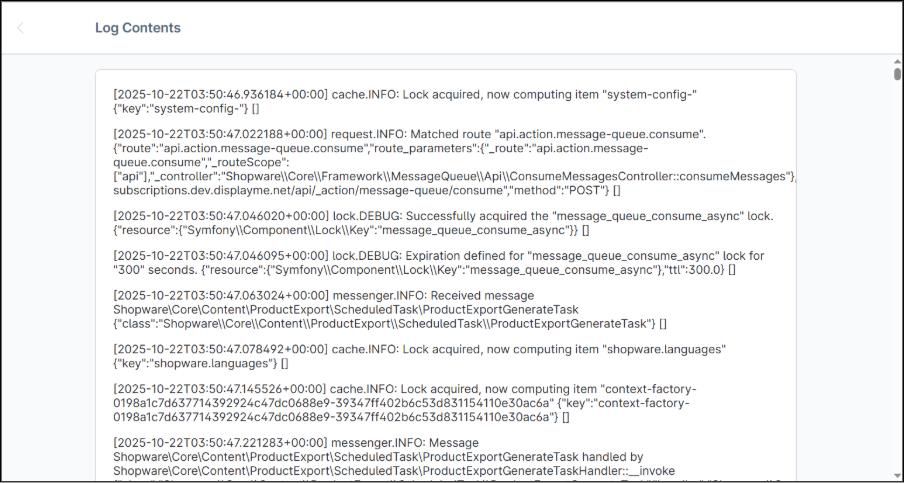
To view the details of the log, click on the three dots corresponding to the log and click on ‘View’.
Important Notes:
- Subscription price details (initial fee, recurring amount, and discount value for Fixed type) are to be stored in the default currency.
- Currency conversion is applied to all other currencies.
- The default currency must not be modified after subscriptions are placed.
SUPPORTED LANGUAGES
English (United Kingdom), German
CHANGE LOG/RELEASE NOTES
Version 1.0.0, November 2025:
- Initial Version
- Compatible with Shopware 6.7.1.2
SUPPORT
If you have questions, use our contact form in https://www.webshopextension.com/ or email to support@webshopextension.com