
Kategorien
Magento
WordPress
SAP Commerce
Odoo
Shopify
Typo3
Shopware
nopCommerce
Pimcore
Hyvä
OXID eShop














































































1. Product Specification
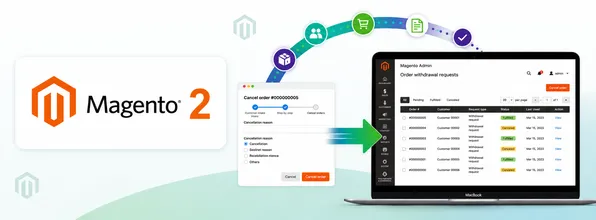
The Order Withdrawal Extension for Magento 2 enables merchants to comply with EU statutory withdrawal requirements. Customers can submit withdrawal requests for eligible orders within a configurable period. Store administrators review requests in the admin panel, approve or decline them, and optionally automate order cancellation or refund processing.
2. Features
- Customer withdrawal workflow for logged-in and guest customers
- Configurable withdrawal period (default: 14 days)
- Period calculation from order date, shipment date, or delivery date
- Three after-action modes: Store request only, Store and alert admin, Store and auto-process
- Email notifications for customers and administrators
- Email withdrawal link in order confirmation emails (tokenized URL, no login required)
- Admin grid: view, fulfill, decline, mass fulfill/decline
- Withdrawal button on customer order view and optional footer link
- Debug and error logging
- Partial-order withdrawal handling.
3 . Installation
To install the Order Withdrawal Extension for Magento 2, follow the steps below. Please ignore the steps 1 & 2 if you are installing the extension using composer.
1) Download the extension.
2) Access your web server directories and unzip and upload the content of the zip file to app/code directory.
3) Run the following commands from the SSH terminal of the server to complete the installation.
1. Enable the module - php bin/magento module:enable Pits_OrderWithdrawal
2. Update the database schema - php bin/magento setup:upgrade
3. Generate and pre-compile classes - php bin/magento setup:di:compile
4. Deploy static files - php bin/magento setup:static-content:deploy
5. Clear the cache – php bin/magento cache:flush
4. Admin Panel Configuration
EU Withdrawal Button:
Navigate to STORES → CONFIGURATION → PITS EXTENSIONS → EU Withdrawal Button
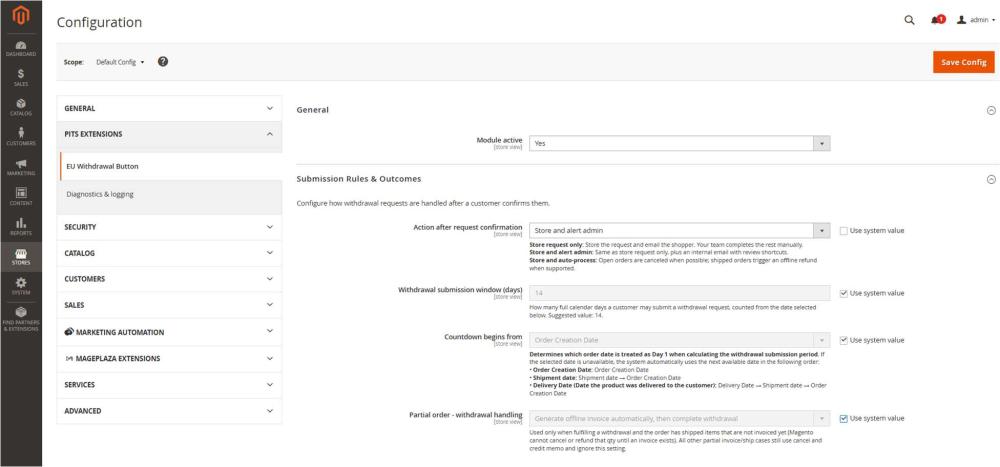
Figure 1 – EU Withdrawal Button – Configuration
The General encompasses the following fields:
- Module active - Set to Yes to activate the extension.
The Submission Rules & Outcomes encompass the following fields:
- Action after request confirmation:
- Store request only - Log request + customer confirmation email. Admin processes manually.
- Store and alert admin - Above + admin notification email with review link.
- Store and auto-process - Auto-cancel unshipped orders or create offline credit memo if shipped.
- Withdrawal submission window (days) : Days within which customers can withdraw (default:14).
- Countdown begins from:
- Order Creation Date
- Shipment Date
- Delivery Date (Date the product was delivered to the customer)
If the selected date is unavailable, the system uses the next available date:
-
- Order Creation Date: Order Creation Date
- Shipment date: Shipment date → Order Creation Date
- Delivery Date: Delivery Date → Shipment date → Order Creation Date
Magento does not store a native delivery date. If you choose Delivery Date, set that date on the admin order detail page (see below). Only shipped orders can have a delivery date set.
Figure 2 – Order Withdrawal Delivery Date– Configuration
- Partial order - withdrawal handling:
Used only when a withdrawal is fulfilled (manual or auto-process) and the order has shipped items that are not invoiced yet. Magento cannot cancel or refund that qty until an invoice exists. All other cases still use cancel and/or offline credit memo and ignore this setting.
-
- Generate offline invoice automatically, then complete withdrawal (default) : Creates an offline invoice only for the shipped-but-not-invoiced qty, then cancels remaining open qty and refunds invoiced qty so the withdrawal can finish.
- Cancel or refund available qty, then hold uninvoiced shipped qty : Cancels and/or refunds what Magento allows, then places the order On Hold so staff can finish the leftover shipped-uninvoiced items manually. The request Action shows Partial — on hold, and the customer email explains that the request was only partially complete
The Email Notifications encompass the following fields :
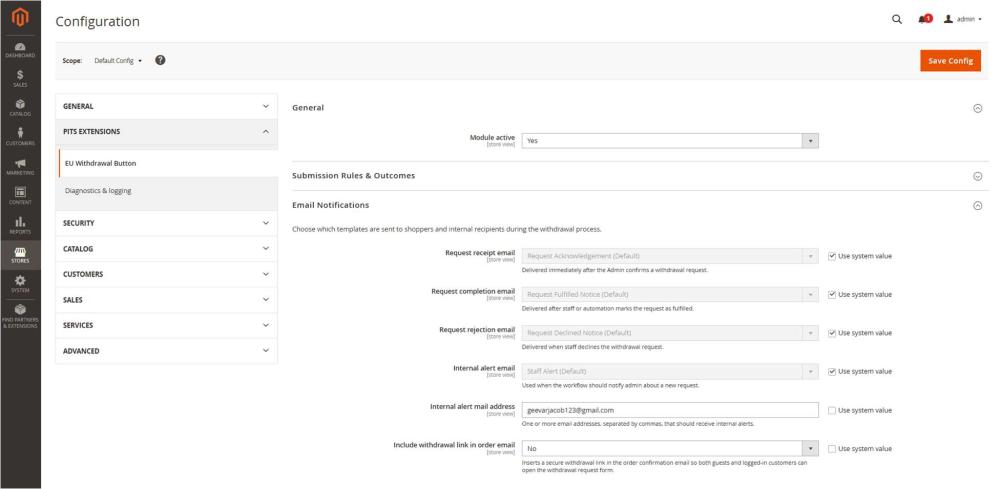
Figure 3 – Order Withdrawal Email Notifications– Configuration
- Request receipt email – Sent when customer submits a withdrawal.
- Request completion email – Sent when request is fulfilled.
- Request rejection email – Sent when request is declined.
- Internal alert email – Sent to administrators for new requests.
- Internal alert email address – Comma-separated admin email addresses.
- Include withdrawal link in order email – Tokenized withdrawal URL in order confirmation mail.
The Front end Display Settings encompass the following fields :
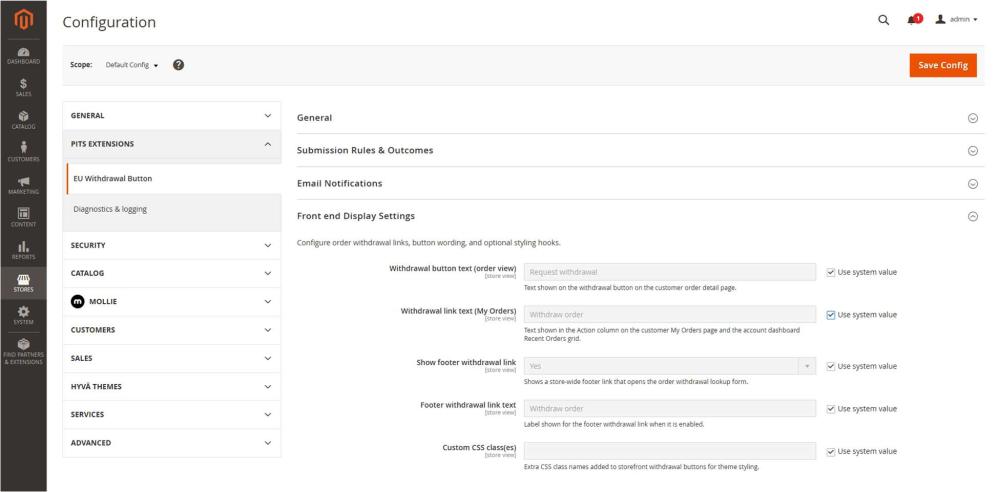
Figure 4 – Order Withdrawal Frontend Display Settings – Configuration
- Withdrawal button text (My Account) – Text shown on the withdrawal button on the customer order detail page.
- Withdrawal link text (My Orders) - Text shown in the Action column on the customer My Orders page and the account dashboard Recent Orders grid.
- Show footer withdrawal link – Show withdrawal link in store footer.
- Footer withdrawal link text – Footer link label (default: Withdraw order).
- Custom CSS class(es)– Optional CSS class for withdrawal buttons.
Diagnostics & logging:
Navigate to STORES → CONFIGURATION → PITS EXTENSIONS → Diagnostics & logging
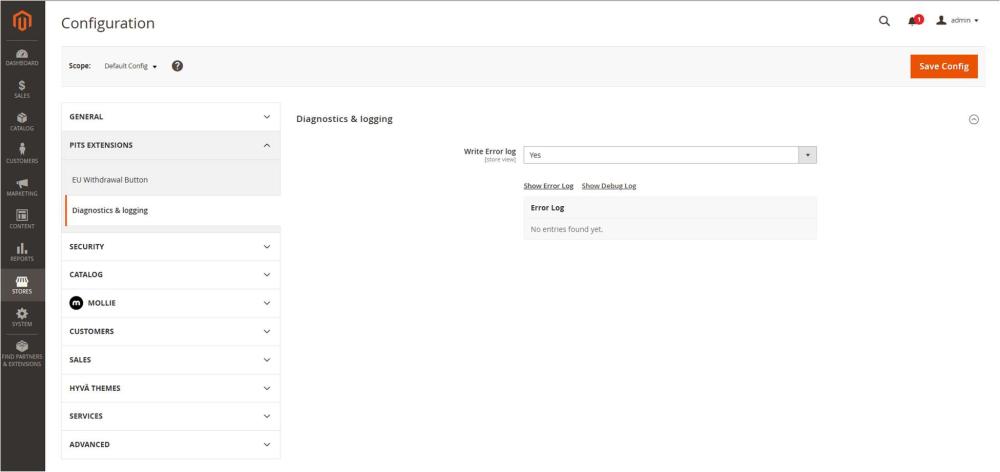
Figure 5 – Order Withdrawal Diagnostics & logging – Configuration
- Write Error log – Set to Yes to activate the diagnostics and logging.
5. Admin order withdrawal requests handling
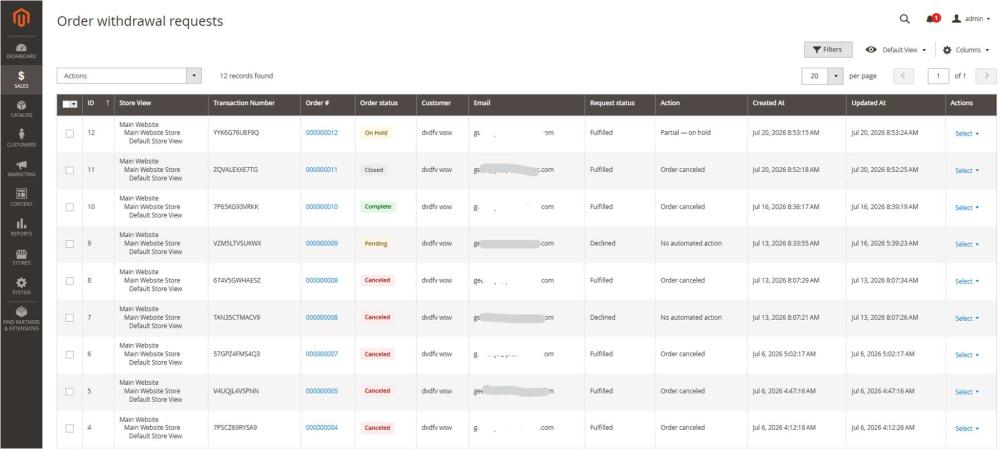
Figure 6 – Order Withdrawal Request Grid
- Navigate to Sales → EU Withdrawal Button → Order withdrawal requests.
- ID, Store View, Transaction Number, Order #, Order status, Customer, Email, Request status, Action, Created At, Updated At, Actions.
- Actions: View, Fulfill, Decline, Mass fulfill, Mass decline.
- Statuses: Pending, Fulfilled, Declined.
6. How it Works in Frontend
Entry points:
- Footer withdrawal link (if enabled in configuration)
- Footer link text — editable in admin configuration
- Order withdrawal link on customer order view page
- Order withdrawal link on My Orders grid (sales/order/history)
- Order withdrawal link on account dashboard Recent Orders grid
- Email cancellation link in order confirmation email (if enabled)
- Direct URL: https://your-store.com/order-cancel/locate/open (guest lookup landing page)
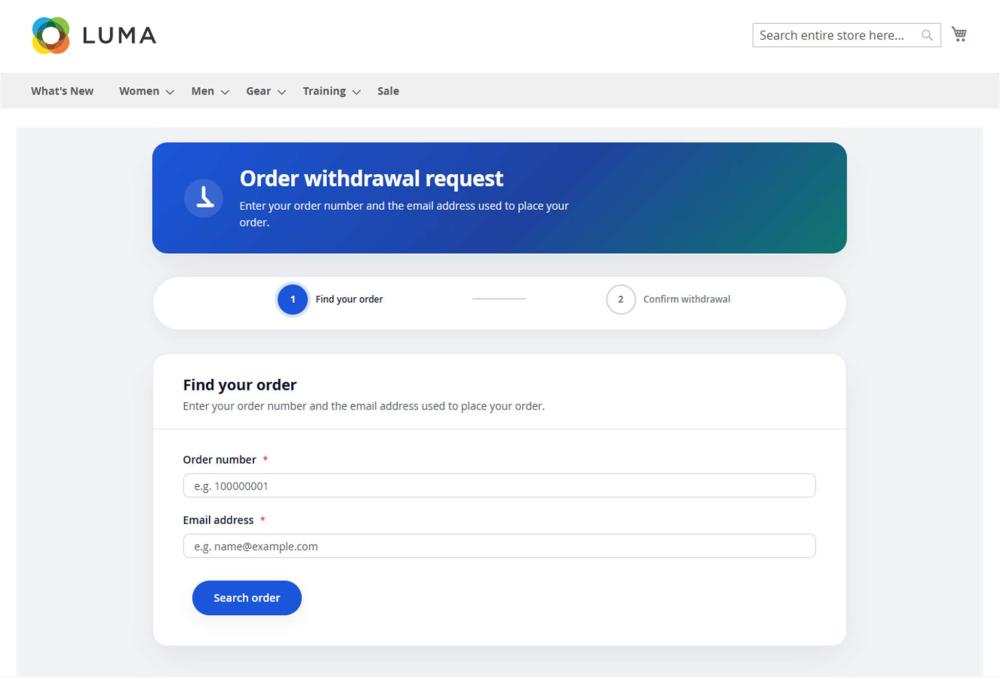
Figure 7 – Order Withdrawal Find order Page
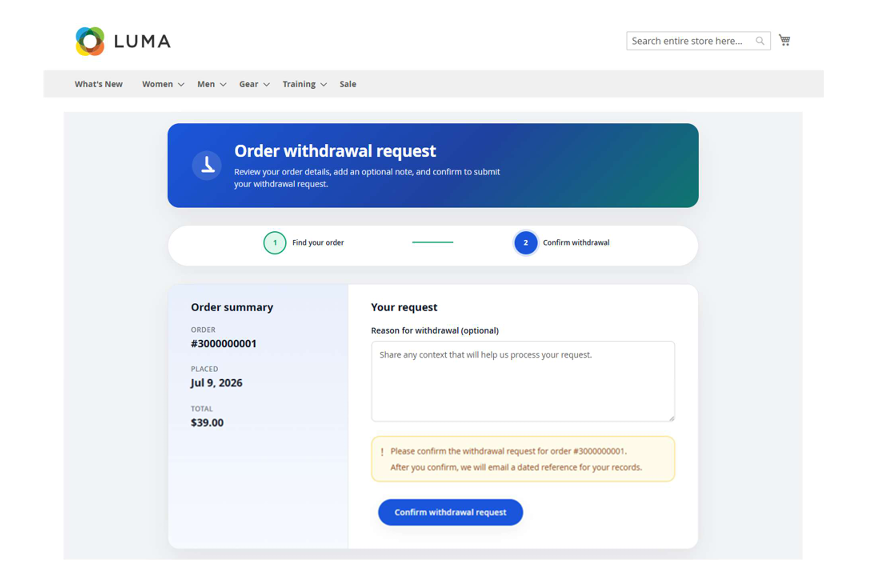
Figure 8 – Order Withdrawal Review Order Page
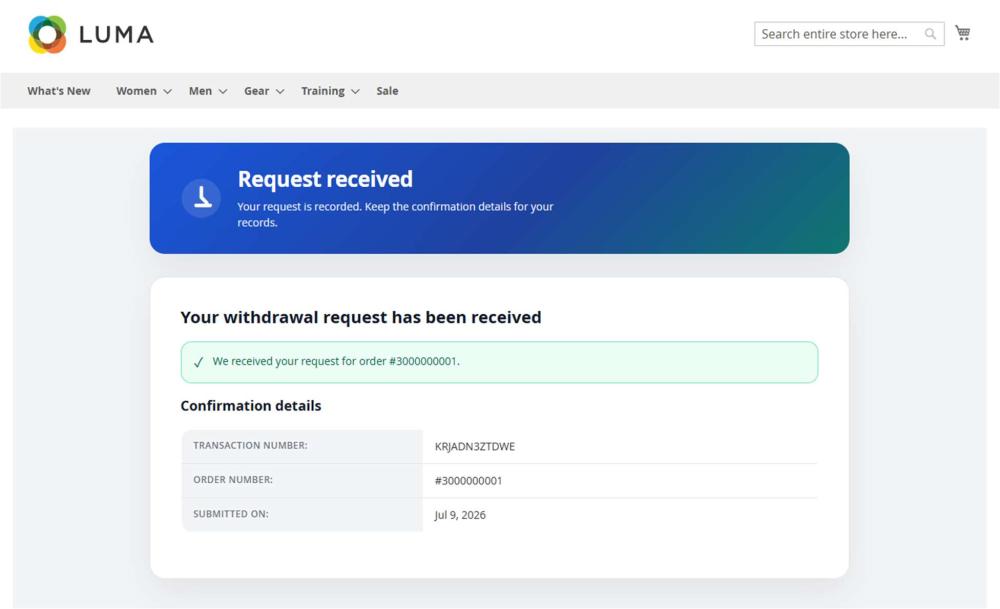
Figure 9 – Order Withdrawal Request Success Page
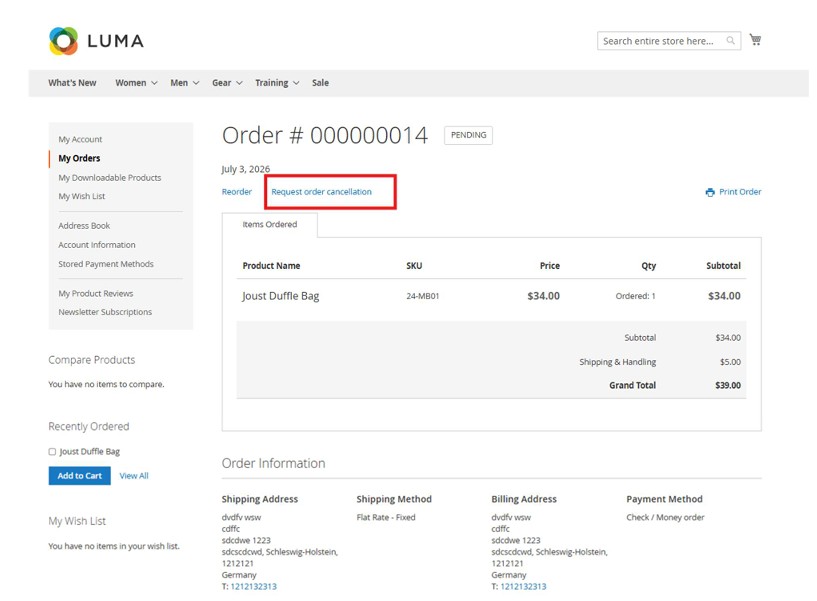
Figure 10 – Order detail page withdraw link placement
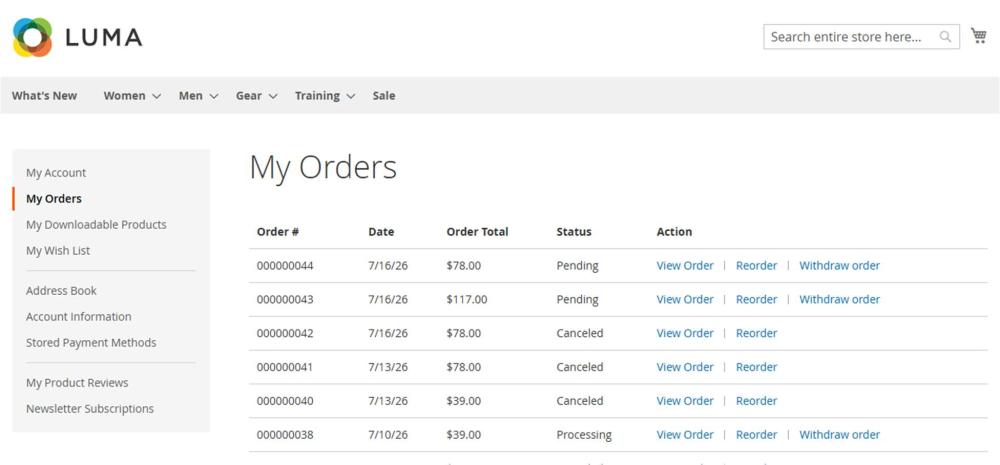
Figure 11 – My Orders page withdraw order link placement
Customer Workflow:
- Step 1 – Locate order: Guest enters order number + email; logged-in customers use account.
- Step 2 – Intake preview: Customer confirms order details and optional withdrawal reason.
- Step 3 – Confirm & acknowledgement: Request submitted; confirmation email sent.
Eligibility:
- Extension enabled for the store
- Order status: pending, processing, or complete
- Within configured submission window
- Step 2 – Intake preview: Customer confirms order details and optional withdrawal reason.
- No existing confirmed or fulfilled cancellation request for the order
7. Technical Requirements / Compatible with:
- Magento Open Source 2.4.5 to 2.4.9
8. Supported Languages
- English, German and easily customizable for other Magento supported language packs.
9. Change Log / Release Notes:
Version: 1.0.0
- Initial version
10. Support
If you have questions, use our contact form at webshopextension.com