
Categories
Magento
WordPress
SAP Commerce
Odoo
Shopify
Typo3
Shopware
nopCommerce
Pimcore
Hyvä
OXID eShop



























































































The Odoo Operational Inventory Loss Management System is a comprehensive Odoo module designed to help businesses track, control, and analyze inventory losses. It provides a structured interface for recording wasted products, identifying root causes (e.g., spoilage, theft, handling errors), and enforcing approval workflows to ensure accountability. By integrating directly with Odoo’s Stock and Accounting modules, it ensures that every wasted item is automatically removed from inventory and accounted for financially
Features and Benefits
- Comprehensive Inventory Loss Tracking: Empower stakeholders to record detailed Inventory Loss events with precision, including product specifics, lots/serial numbers, and quantities, ensuring granular visibility into every inventory loss.
- Evidence Collection: Enforce accountability by photo evidence for specific Inventory Loss reasons (like Handling Errors or Spoilage), ensuring verifiable proof is captured before valuable stock is written off.
- Automated & Tiered Approval Workflows: Streamline operations with configurable cost thresholds that automatically approve low-value requests to save time, while routing high-value losses for mandatory manager review to maintain strict control.
- Seamless Inventory & Accounting Integration: Automatically trigger adjustments and financial journal entries immediately upon posting, ensuring that inventory levels and financial statements reflect real-time Inventory Loss without manual double-entry.
- Customizable Reason Management: Define business-specific Inventory Loss reasons with specific behavioural flags, enabling precise categorization and deeper root-cause analysis of inventory shrink.
- Insightful Reporting & Analytics: Generate professional PDF reports and utilize dynamic pivot views to analyse Inventory Loss trends by product, responsible employee, or reason, empowering data-driven decisions to minimize future losses.
Installation
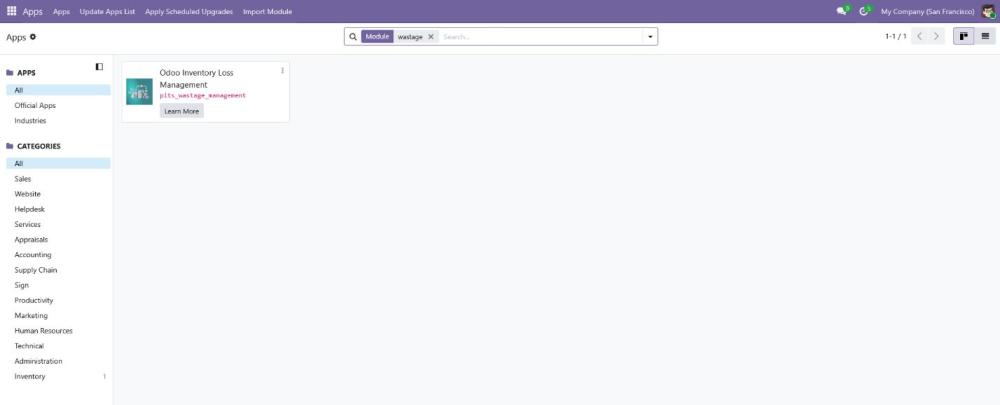
Figure 1 -Installation of Odoo Inventory Loss Management
To install the Odoo Operational Inventory Loss Management, follow the steps below:
- Copy or upload the Odoo Operational Inventory Loss Management module into your Odoo addons directory.
- Go to the Apps menu in Odoo.
- Click Update Apps List.
- Search for Odoo Operational Inventory Loss Management.
- Locate the module in the results and click Install.
Configurations
Inventory Loss reasons
- Go to Inventory Loss Management → Configuration → Inventory Loss Reasons.
- Create Inventory Loss reasons such as “Spoilage” or “Broken”.
- Enter the code and category for each reason.
- Enable Photo Required if photo evidence should be mandatory for that reason.
- Enable Is Deductible if the Inventory Loss cost should be deducted from the deductible account or tracked separately.
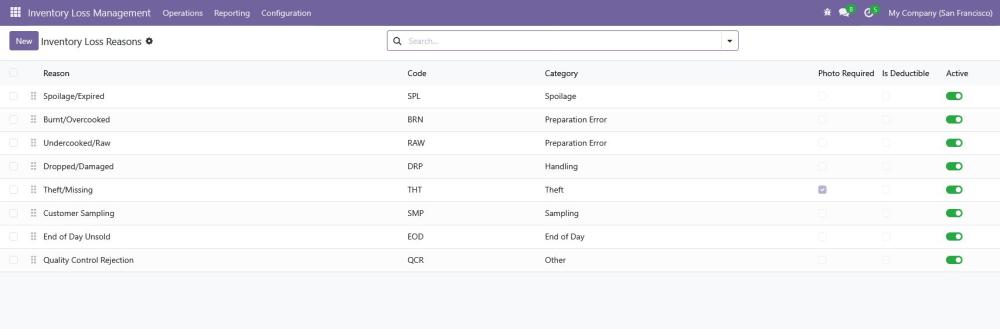
Figure 2 -Inventory Loss Reasons
Threshold Settings
- Go to Inventory Loss Management → Configuration → Settings.
- Set the Auto-Approval Threshold Amount.
- Any request with a total cost below this amount will be automatically approved and skip the manual approval step.
- Select a Deductible Account, which will be used for Inventory Loss reasons marked as deductible
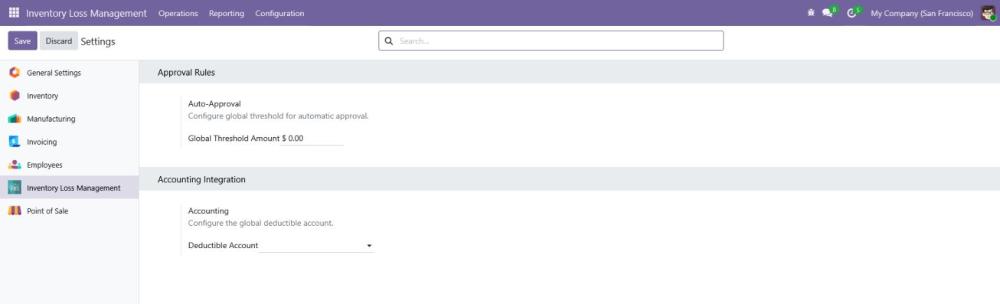
Figure 3 –Inventory Loss Settings
Workflow
Creating a Request
- Navigate to Inventory Loss Management → Operations → Inventory Loss Requests.
- Click New to create a request.
- Enter the Source Location (where the stock is currently stored).
- Enter the Scrap Location (where the stock will be moved as Inventory loss).
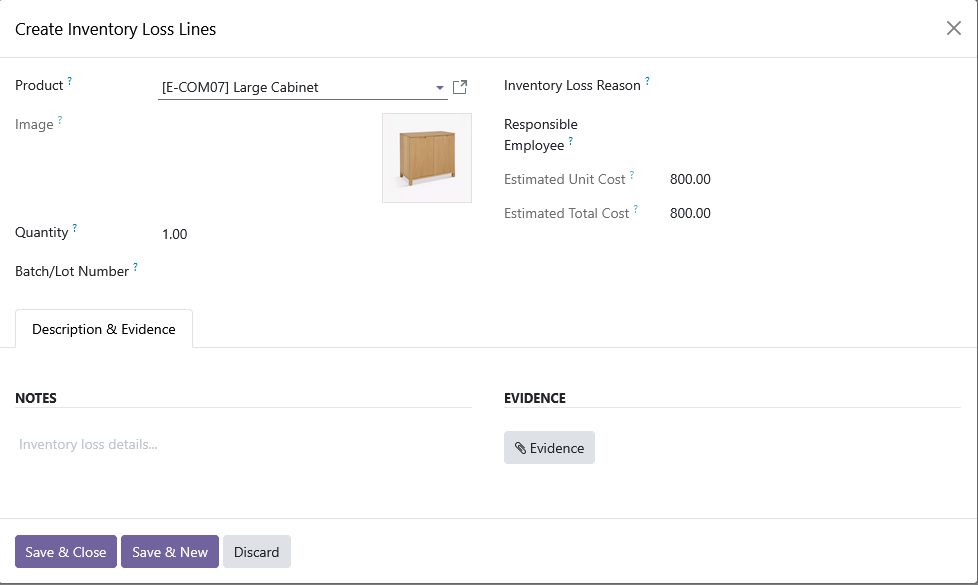
Figure 4 -Inventory Loss lines
- Click Add a line in the Detail Lines tab.
- Select the Product and enter the Quantity.
- Units will be shown if Units of Measure & Packagings is checked in Inventory settings.
- Choose a Reason for the Inventory Loss.
- Select a Lot/Serial Number, if applicable.
- If the selected reason requires a photo, attach it in the corresponding line form.
- Click Save. The request will be saved in Draft status.
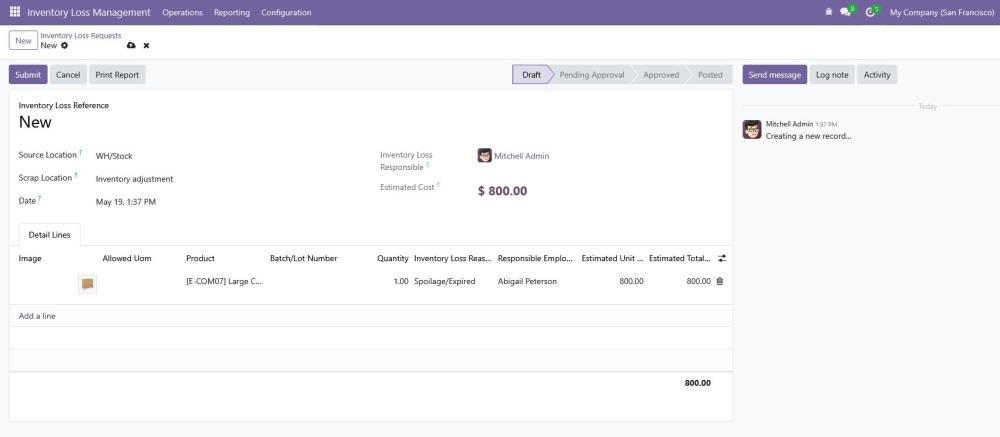
Figure 5 -Inventory Loss Request
Submission & Approval
- Submit: Click the Submit button.
- Scenario A (Low Value): If the total cost is below the configured threshold, the request is automatically approved.
- Scenario B (High Value): If the total cost exceeds the threshold, the request status changes to Pending Approval.
- Review (Manager/Approver):
- Navigate to Inventory Loss Management → Operations → To Approve.
- Open the pending request.
- The Approver has permission to delete a product line but does not have permission to edit the product line details
- Click Approve to proceed
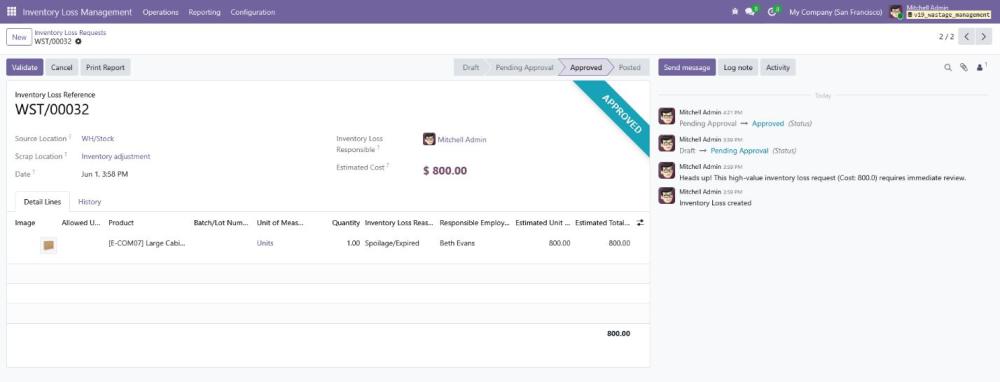
Figure 6 -Approved Inventory Loss Requests
-
- Once Approved, click Validate to make updates in inventory/accounting
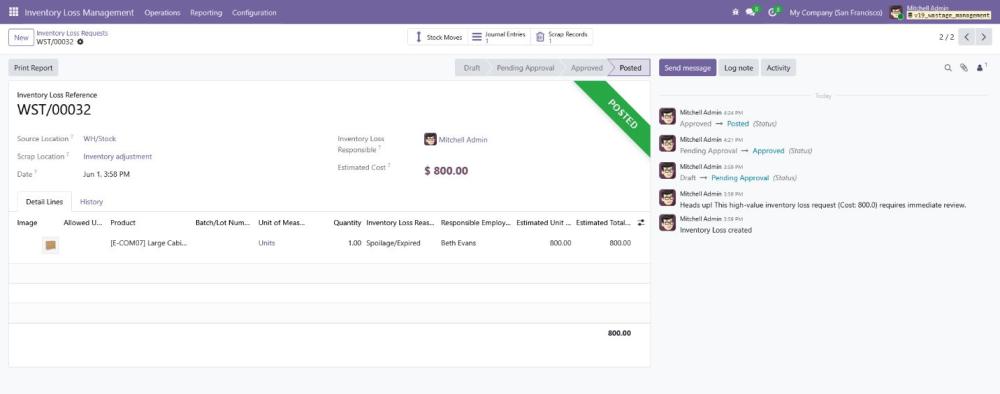
Figure 7 -Posted Inventory Loss Requests
-
- Reject: Click Reject. A popup will appear asking for the rejection reason. Once confirmed, the request moves to the Rejected state and is locked.
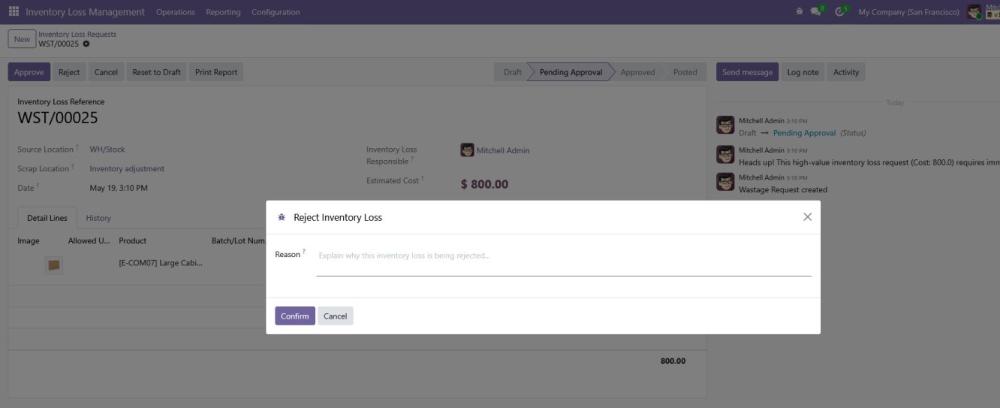
Figure 8 -Reject Inventory Loss Reason
-
- Inventory Loss Requests allow you to record and manage product losses in POS and Manufacturing due to damage, expiry, or production issues.
- Navigate to Point of Sale → Orders → Inventory Loss Requests. Only POS-related Inventory loss requests are displayed here, and you can select the respective Shop.
- Navigate to Manufacturing → Operations → Inventory Loss Requests to manage manufacturing-related Inventory loss requests.
Stock & Financial Impact
Once a request reaches the Posted state:
- Inventory Updated: Stock is deducted from the Source Location.

Figure 9- Move Analysis
- Accounting Updated: Corresponding financial journal entries are generated.

Figure 10 - Journal Entries
- Traceability: Smart buttons appear at the top right of the form, allowing you to view the related Stock Moves, Scrap Records, and Journal Entries.

Figure 11 - Scrap Orders
Reporting & Analytics
PDF Documentation
- Inventory Loss Request:
Open a specific Inventory loss request and click Print (or use the Print menu) → Inventory Loss Request to download a structured PDF copy.
- Inventory Loss Summary:
In the main list view, select multiple Inventory loss records using the checkboxes. Then click Print → Inventory Loss Summary to generate a consolidated report for the selected records.

Figure 12 - Print Reports
Interactive Reporting Dashboard
- Inventory Loss Cost Trends:
View a line chart of Inventory loss costs over time to identify seasonal spikes or recurring patterns. You can switch to Pivot View to generate a spreadsheet-style report for Excel export.
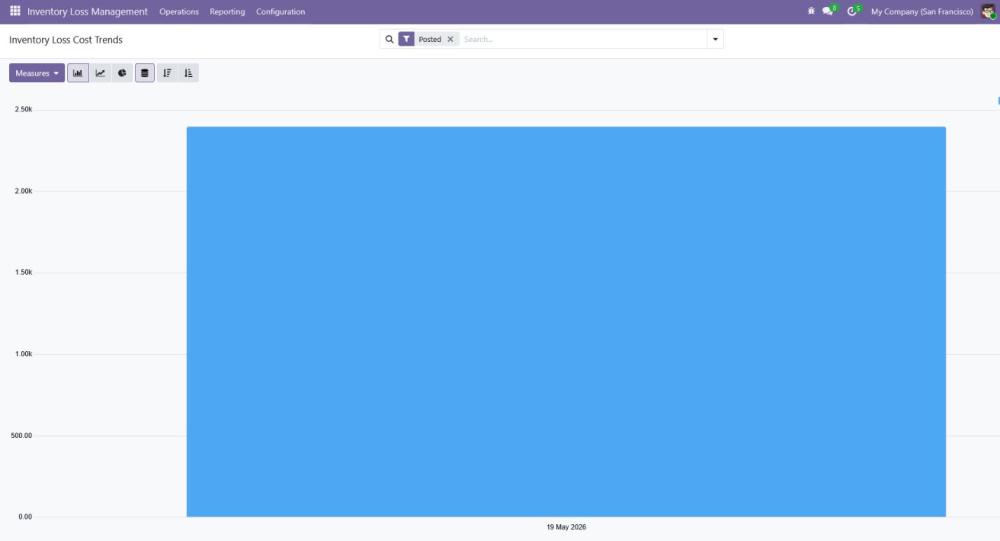
Figure 13 - Inventory Loss Cost Trends
- Inventory Loss by Reason:
Access a visual breakdown (Pie or Bar Chart) showing which reasons (e.g., “Spoilage”, “Handling Error”) contribute most to wastage.
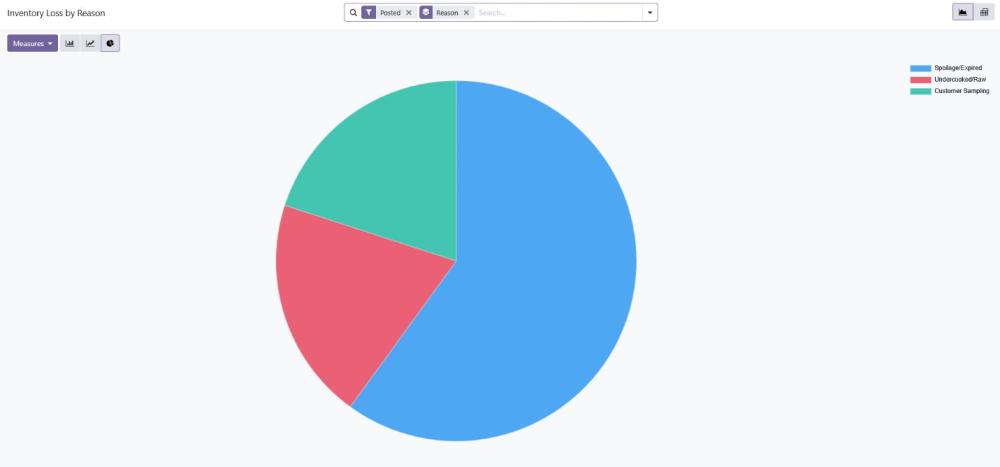
Figure 14 - Inventory Loss by Reason
- Product Inventory Loss Analysis
Identify the most frequently wasted products to prioritize and improve inventory control where it matters most.
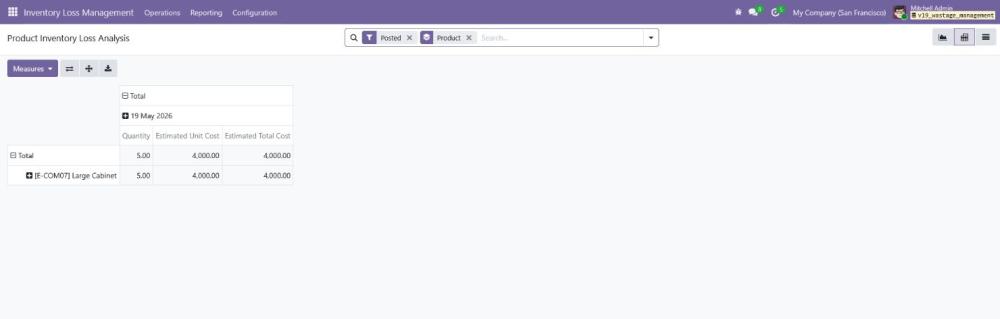
Figure 15 - Product Inventory Loss Analysis
User Groups
The Inventory Loss Management module includes three primary security groups to control access and workflow:
- User: Create Inventory loss records and view their own entries.
- Approver: Reviews and decides on all Inventory loss requests.
- Manager: Full control over settings and every records.
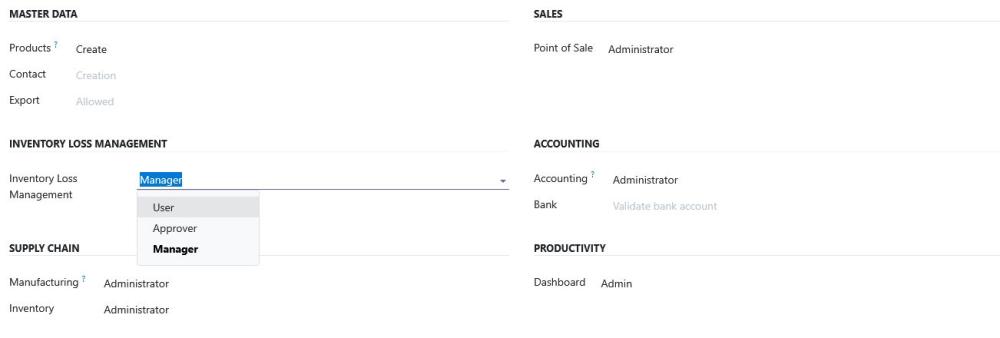
Figure 16 – User Groups
Technical Requirements / Compatibility
- Compatible with Odoo Community and Enterprise Editions v19.0
Change Log / Release Notes
- Version 1.0.0 – March 2026
- Initial release.
Support
If you have questions, use our contact form at webshopextension.com or email at [email protected].